2021年5月26日星期三

How to Get SDConnect C4C5 to Work Under Part W

 MB Star diagnosis SDConnect C5 Clone (its a C4 in a C5 shell) – It works great in Xentry, connects and are fast and never fails there.

Windows 7 32 bit Ultimate Activated – Works perfectly as well and are fully updated
240gb SSD
Vediamo 4.2.2 with a good license and everything activated.
SDConnect Toolkit 2.1.13.

My question is: How to get Vediamo 4.2.2 to run on Part W configuration without the ToolkitApiDll.dll error and vediamo not finding your SDConnect c4/c5? Vediamo 4.2.2 has the Part W-SDconnect functionality integrated, yet when I try to use it stops detecting the SDConnect, because Vediamo doesn’t seem to want to communicate. It is not a computer to ecu error, it’s simply a computer-software error.

Simple question: how to get the SDConnect to work under Part W – SDConnect
And I mean Part W and not Part P-eCom.

Look at this image:
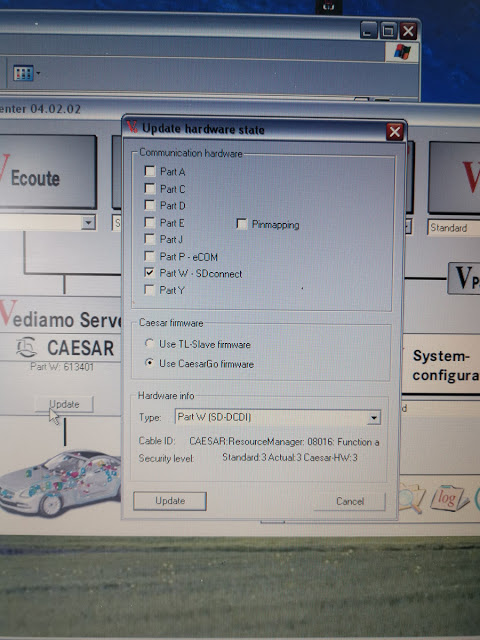
mb-sd-c4-c5-under-part-w

2.1.30 SDConnect Toolkit and Dietrih’s Vediamo 4.02.02 works with part W. Just gotta try with Me21.cbf now and see if we cannot simply get vediamo to work with this “Too old” ECU.

Update:

Success to connecting to the ECU now! It can read fault codes, see sensor data and some more stuff. Not really been giving me in to change anything yet because I am not sure what to do yet. But this is a great step forward!

Enjoy!

For any question on SDConnect C5, contact at www.obd2tool.com for assistance.
loading..

How to change GEM settings in Fiesta 2003


How to change GEM settings in Fiesta 2003 ?
I need to check or change the settings of the GEM in an Fiesta MK6 (build 2003).
Anyone knows a software tool to do this?
I have an ELM327 (clone) adapter at hand. Also an UCDS interface.

There are two software tools to do this:

IDS/VCM
Forscan

In details:
Ideally you want IDS/VCM for this.
At this age you can do anything to this car using a VCM with Ford IDS v86 and C81 calibrations.
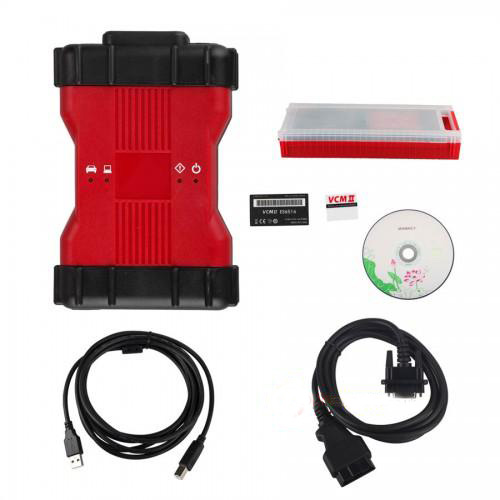
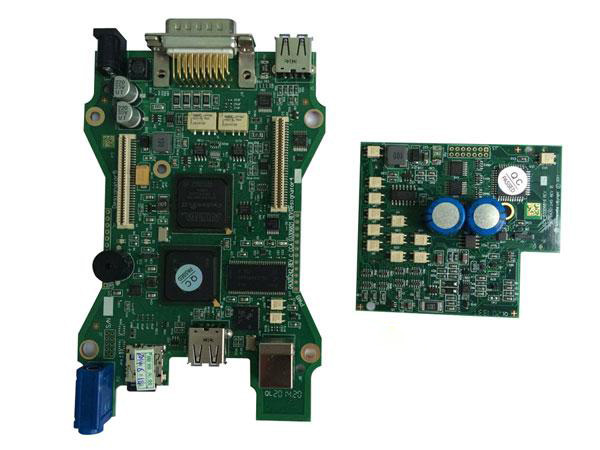
Advise the best VCM2 Ford IDS V101 (with double pcb, no wifi):

Vcm2-Change-Gem-Settings-In-Fiesta-2003-1
Vcm2-Change-Gem-Settings-In-Fiesta-2003-2

Capable alternative: Forscan
ForScan is working fine. I had this, but an old version without capability to program. Downloaded the recent version from forscan.org and all worked like charm! This is a really great tool and all for FREE!

Another working alternative: FORScan Scanner clone
Test reports: China clone bought two days ago, but DTC, direct coding and other functions work.
Vcm2-Change-Gem-Settings-In-Fiesta-2003-3
Vcm2-Change-Gem-Settings-In-Fiesta-2003-4
Vcm2-Change-Gem-Settings-In-Fiesta-2003-5


2021年5月13日星期四

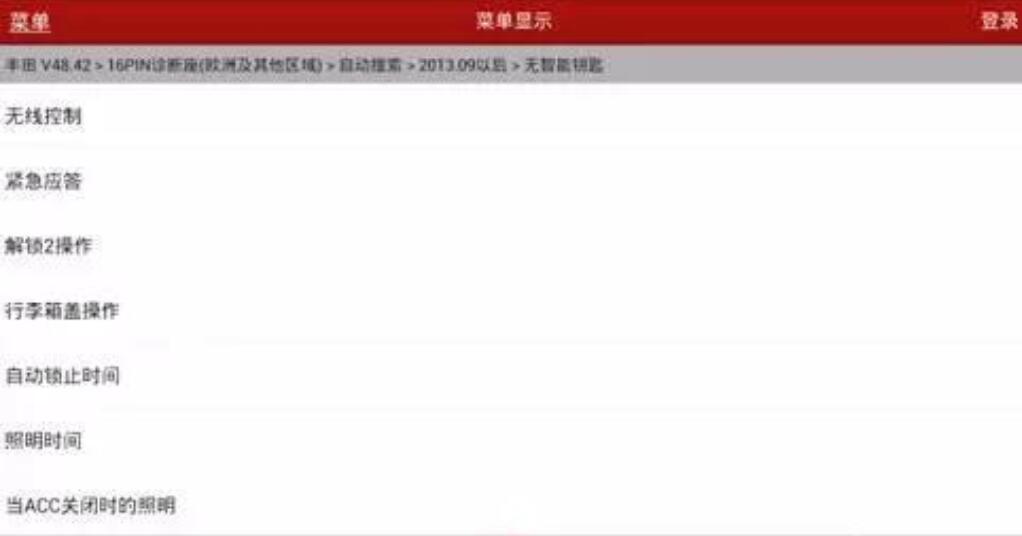
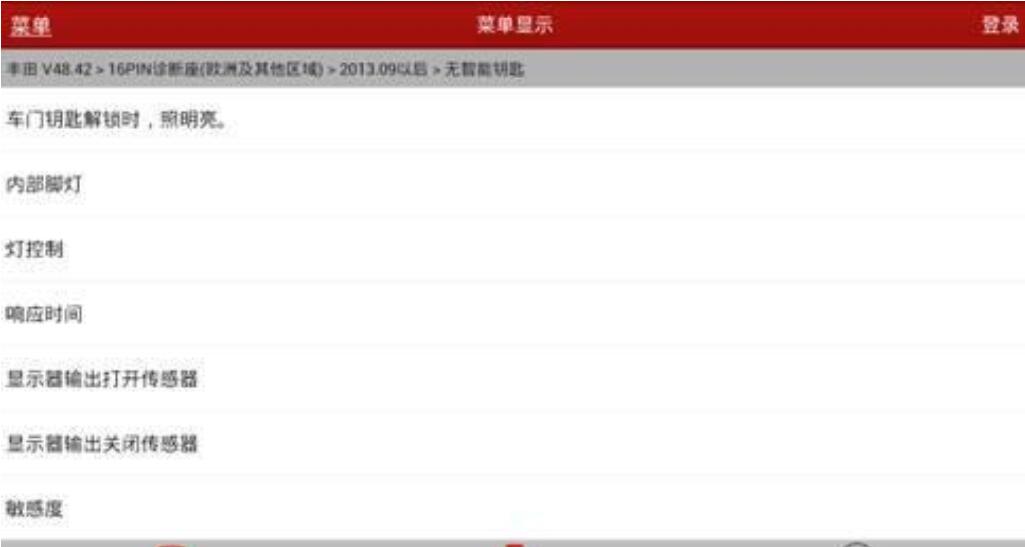
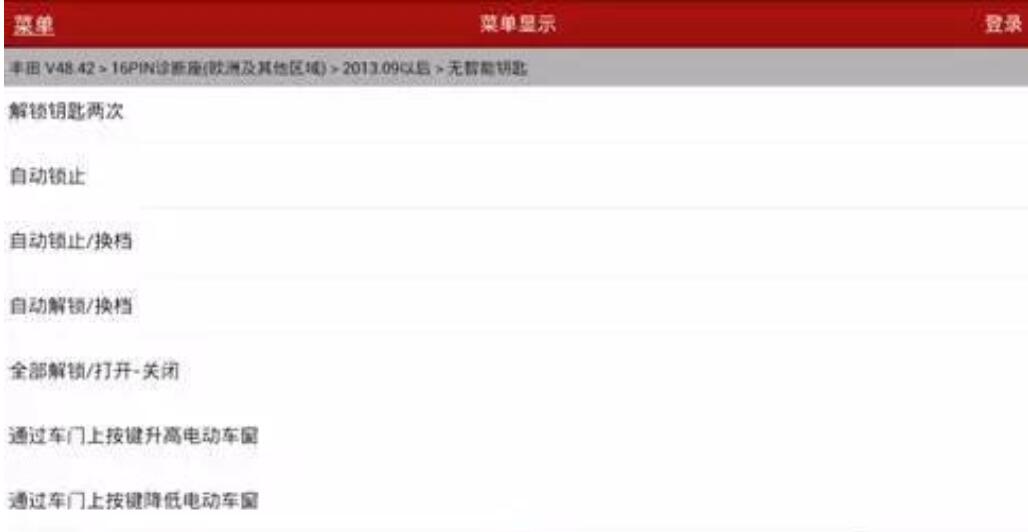
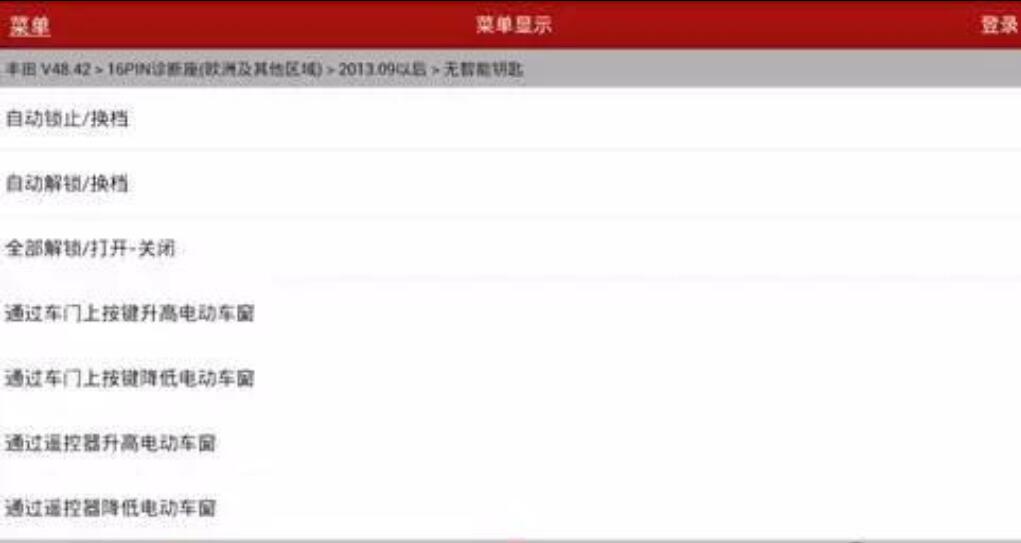
Active Hidden Function via X431 PRO for Toyota Reiz 2015


Here we will show you how to active hidden function by X431 PRO for Toyota Reiz 2015.

Active-Hidden-Function-via-X431-PRO-for-Toyota-Reiz-2015-1

Function has been already tested on Toyota below:

Automatic padlock
Switch off the ignition about 30S/60S/120S Automatic padlock setting;
3 Press Remote control one time or twice to unlock setting.;
4. Luggage cover Settings;
5. The remote control shuts down all electric Windows;
6. The remote control opens all electric Windows;
7. ……

If you want to know more about X431 PRO, please click here: How to use launch X431.

Procedure:

Select“Toyota V48.42”above or VIN identification;
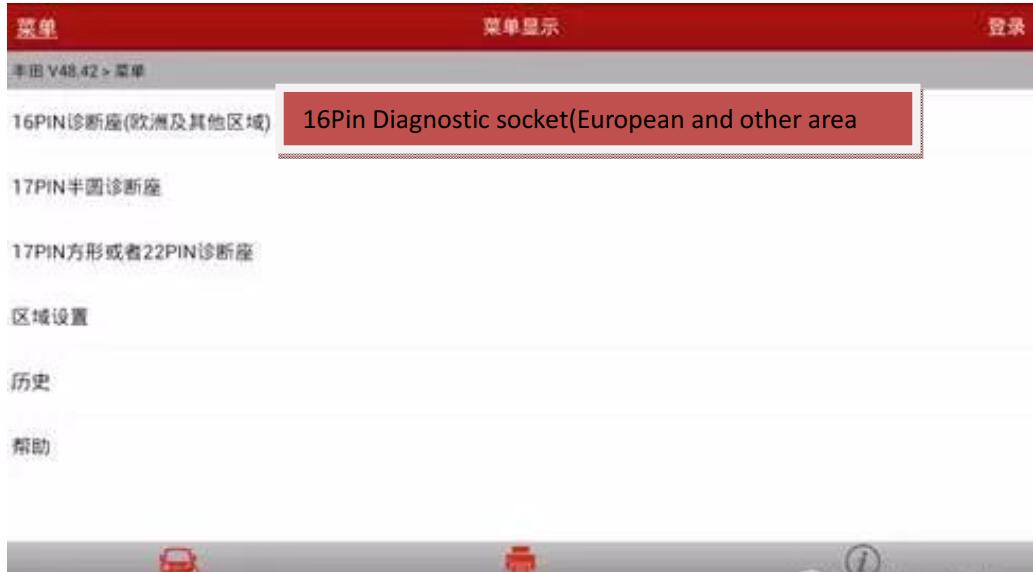
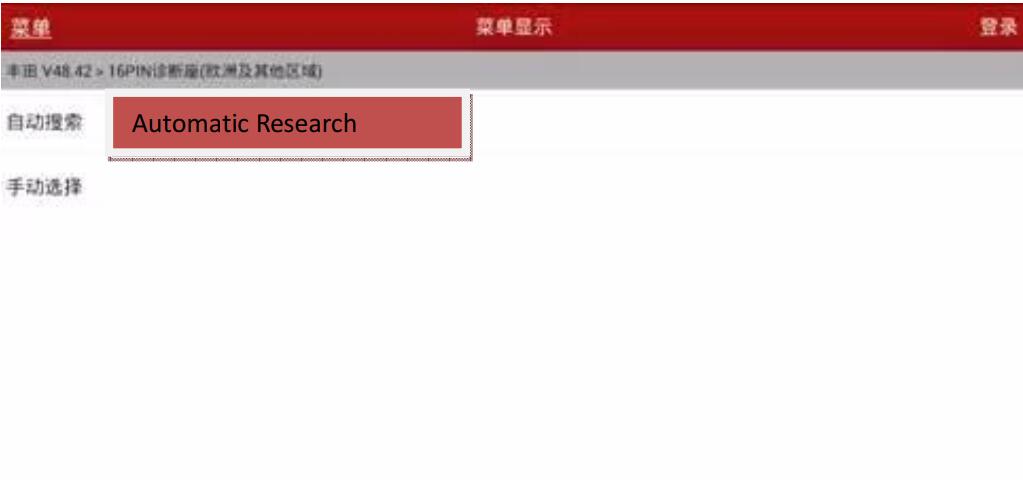
Select 16Pin diagnostic socket(European and other area)

Active-Hidden-Function-via-X431-PRO-for-Toyota-Reiz-2015-1 Active-Hidden-Function-via-X431-PRO-for-Toyota-Reiz-2015-2

Select the automatic search

Active-Hidden-Function-via-X431-PRO-for-Toyota-Reiz-2015-3

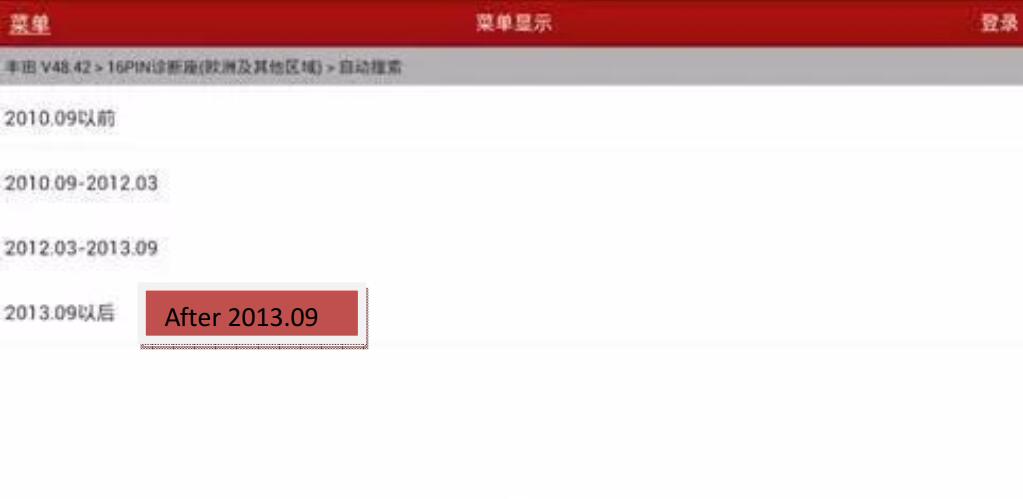
Select after 2013.09

Active-Hidden-Function-via-X431-PRO-for-Toyota-Reiz-2015-4

Actual measurement car model is no smart key,select no smart key

Active-Hidden-Function-via-X431-PRO-for-Toyota-Reiz-2015-5

Read vehicle information

Active-Hidden-Function-via-X431-PRO-for-Toyota-Reiz-2015-6

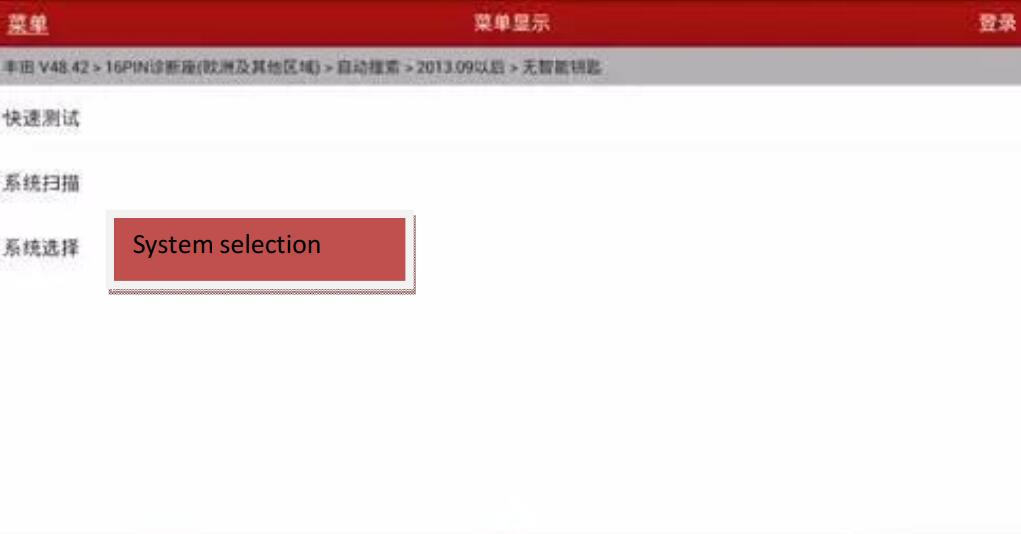
Select system selection

Active-Hidden-Function-via-X431-PRO-for-Toyota-Reiz-2015-7

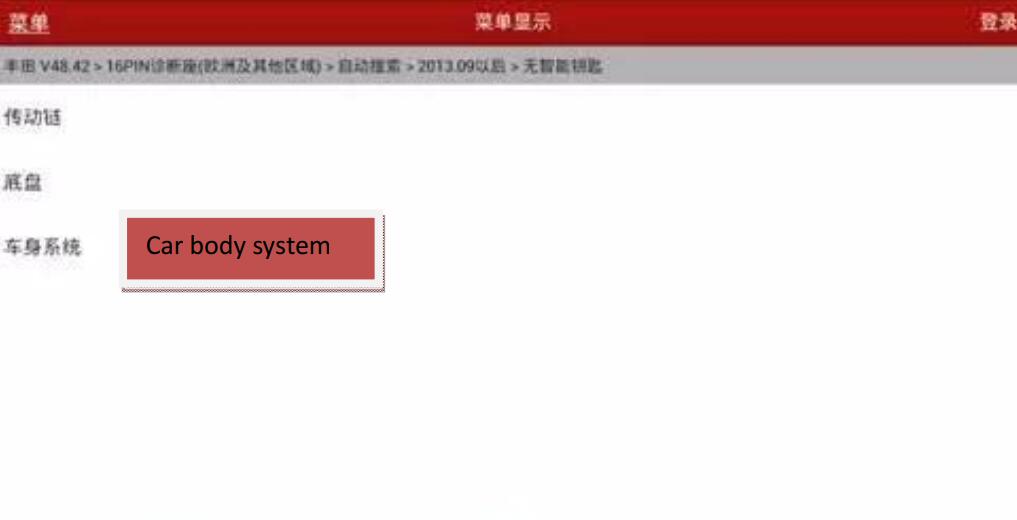
Select car body system

Active-Hidden-Function-via-X431-PRO-for-Toyota-Reiz-2015-8

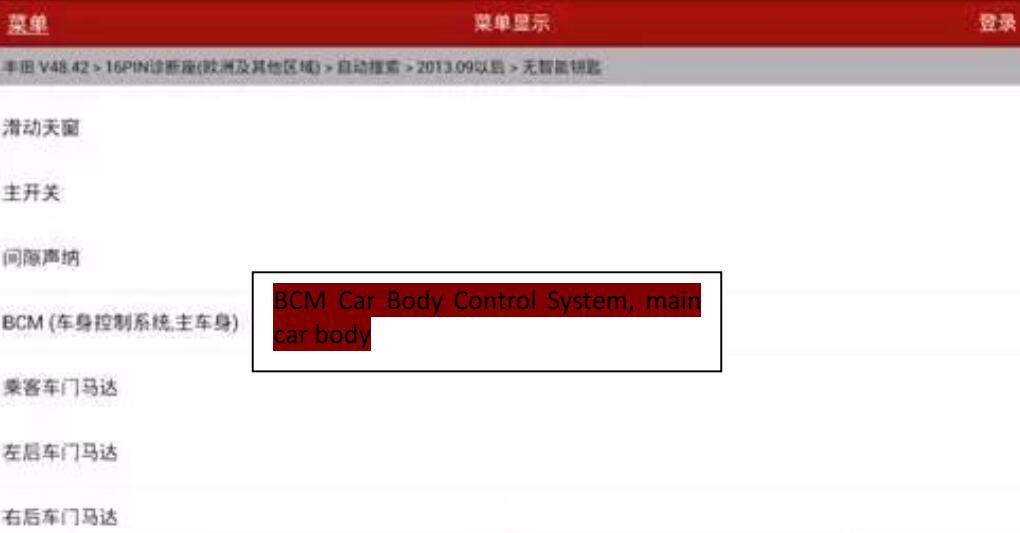
Select BCM(Car Body Control System, main car body

Active-Hidden-Function-via-X431-PRO-for-Toyota-Reiz-2015-9

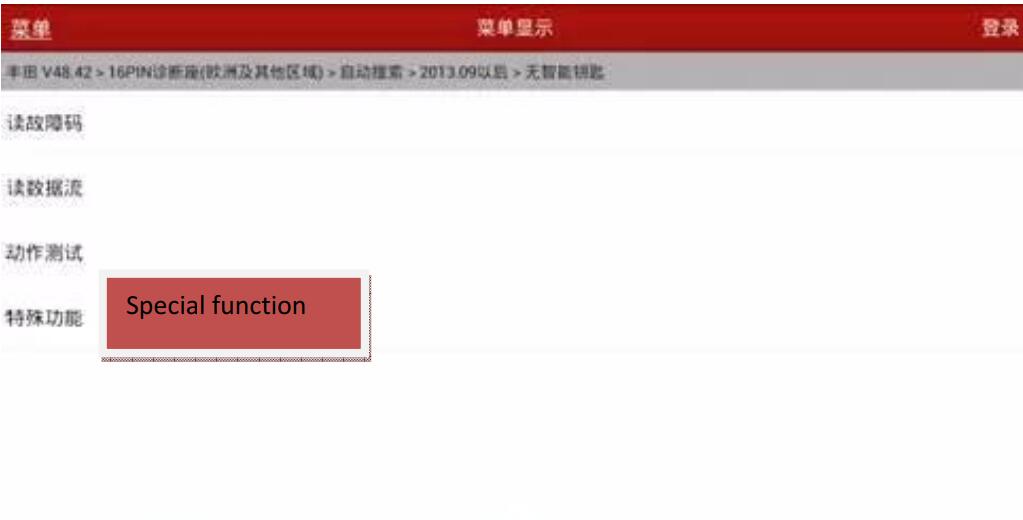
Select special function

Active-Hidden-Function-via-X431-PRO-for-Toyota-Reiz-2015-10

If select“Automatic Scan Special function”, This feature will automatically scan all options for personalized Settings for the diagnostic vehicle
If you select “all special functions”, this feature will display a warning message,The cue shows all the customization options for Toyota cars
Item, not all options are suitable for diagnostic models.

Active-Hidden-Function-via-X431-PRO-for-Toyota-Reiz-2015-11

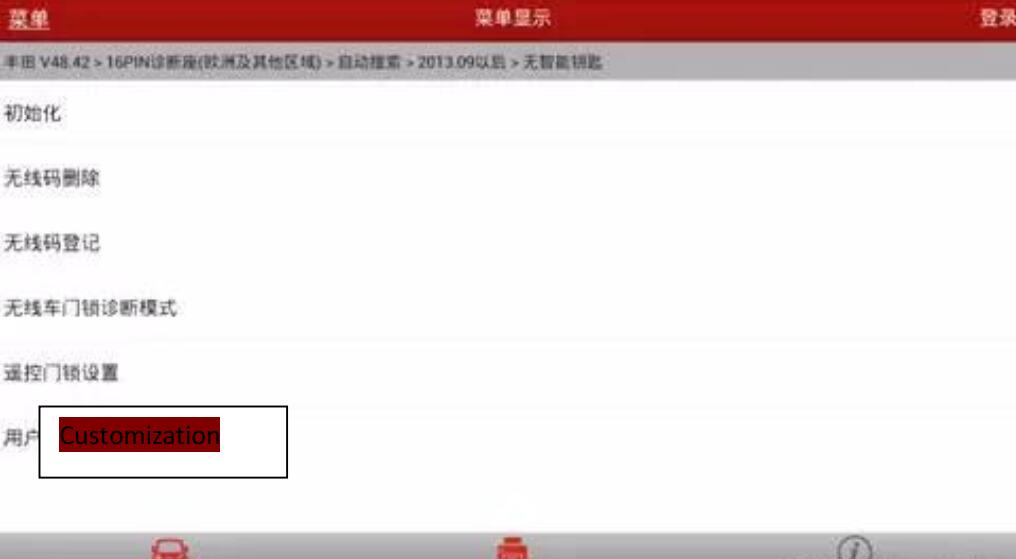
Select customization

Active-Hidden-Function-via-X431-PRO-for-Toyota-Reiz-2015-12

Hidden functions display below:

Active-Hidden-Function-via-X431-PRO-for-Toyota-Reiz-2015-13

Active-Hidden-Function-via-X431-PRO-for-Toyota-Reiz-2015-14

Active-Hidden-Function-via-X431-PRO-for-Toyota-Reiz-2015-15

Active-Hidden-Function-via-X431-PRO-for-Toyota-Reiz-2015-16

If you want to know more cases about Toyota, please refer to Toyota repair.

2021年4月9日星期五

Use Launch X431 Pro Mini Replace Mini Cooper S F55 Brake Pad


Step 1. Diagnosis
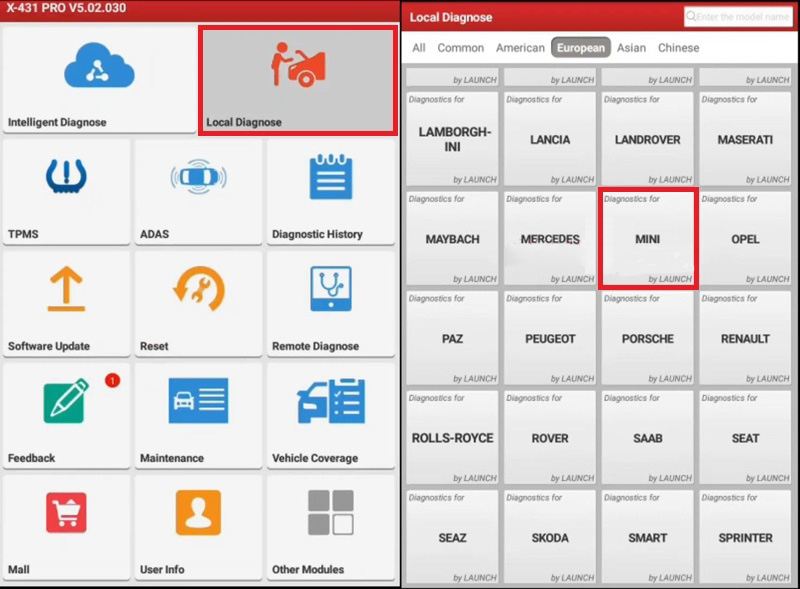
This test is diagnosed by Launch X431 pro mini V4.0 version

launch-x431-pro-mini-replace-mini-cooper-s-f55-brake-pad-2
launch-x431-pro-mini-replace-mini-cooper-s-f55-brake-pad-3
launch-x431-pro-mini-replace-mini-cooper-s-f55-brake-pad-4

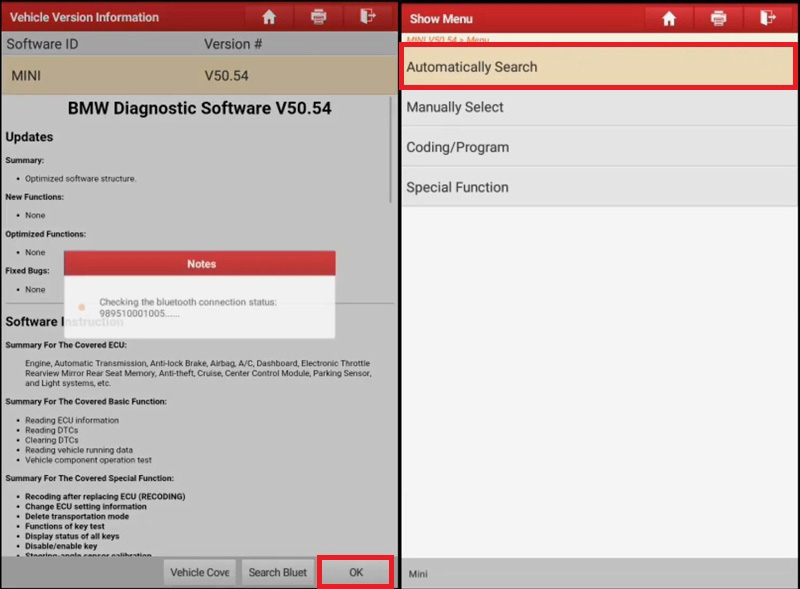
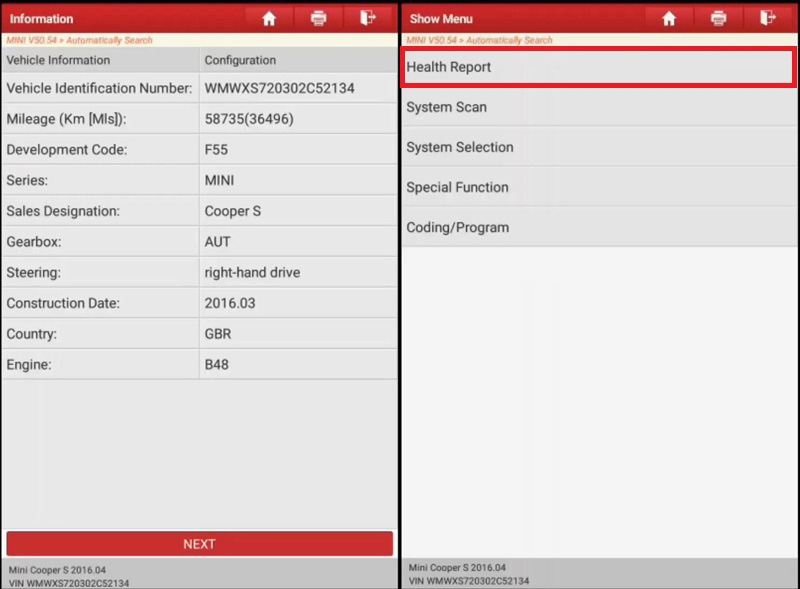
Local diagnose >> MINI >> OK >> Automatically search >> Next >> Health report
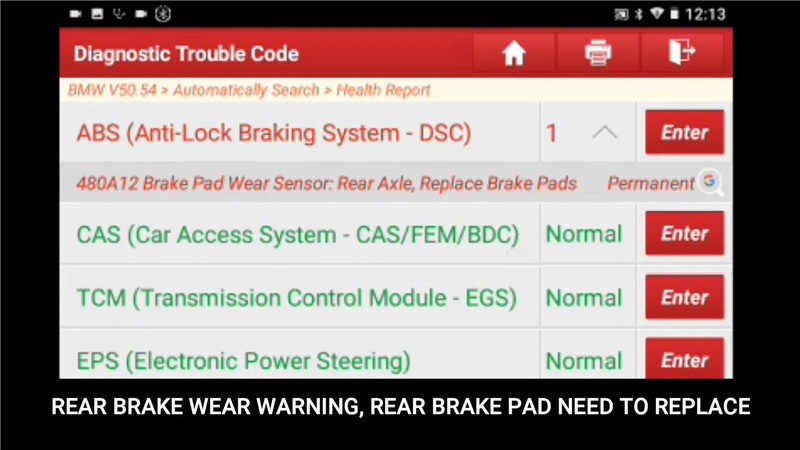
There was a fault code in ABS (Anti-Lock braking system – DSC): 480A12 brake pad wear sensor: rear axle, replace brake pads. The rear brake wear warning means the rear brake pad need to replace.

launch-x431-pro-mini-replace-mini-cooper-s-f55-brake-pad-5

Step 2. Brake pad replacement
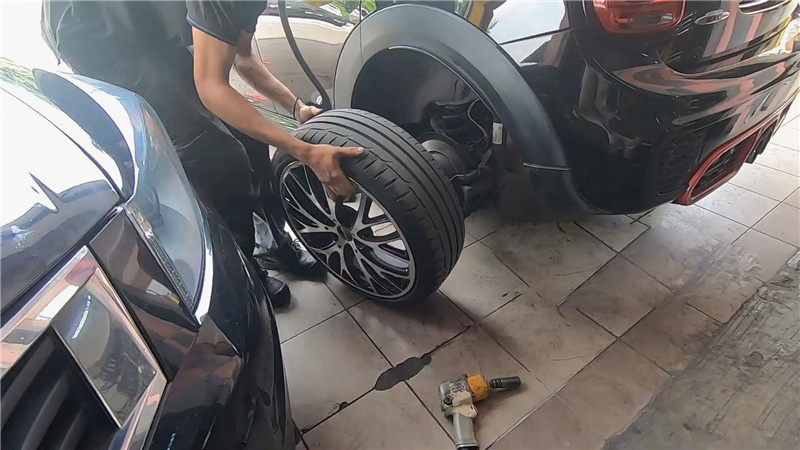
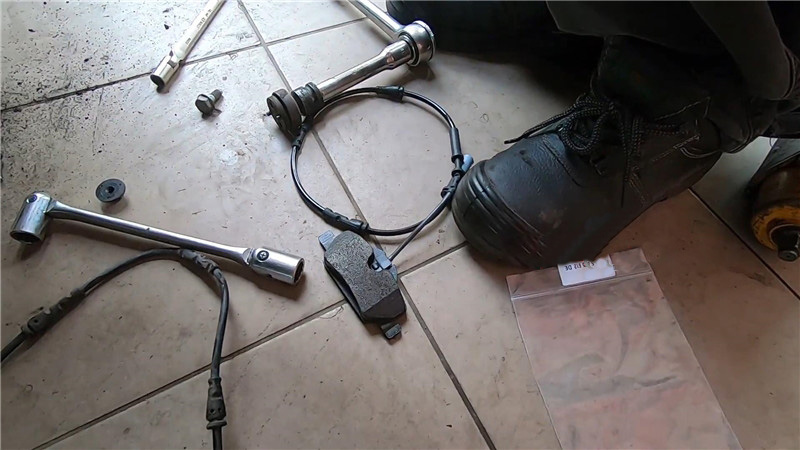
Remove the tire to replace new brake pad and sensor…

launch-x431-pro-mini-replace-mini-cooper-s-f55-brake-pad-6
launch-x431-pro-mini-replace-mini-cooper-s-f55-brake-pad-7

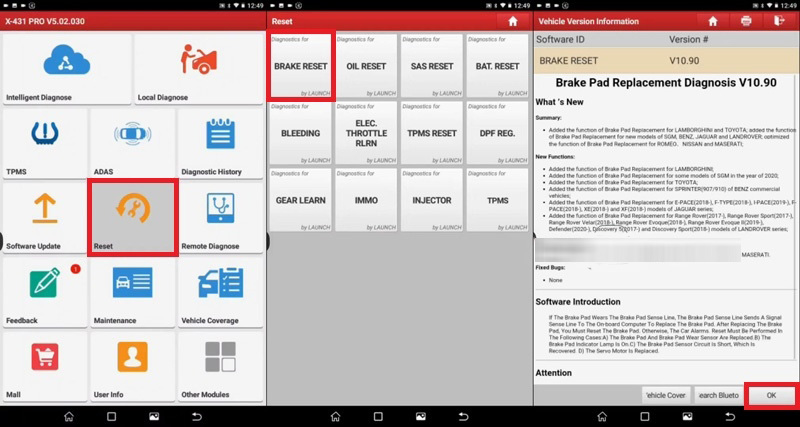
Step 3. Brake reset
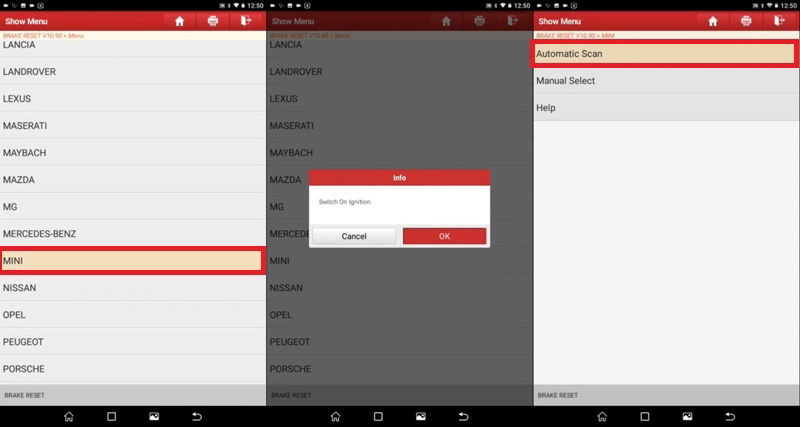
Reset >> Brake reset >> OK >> MINI
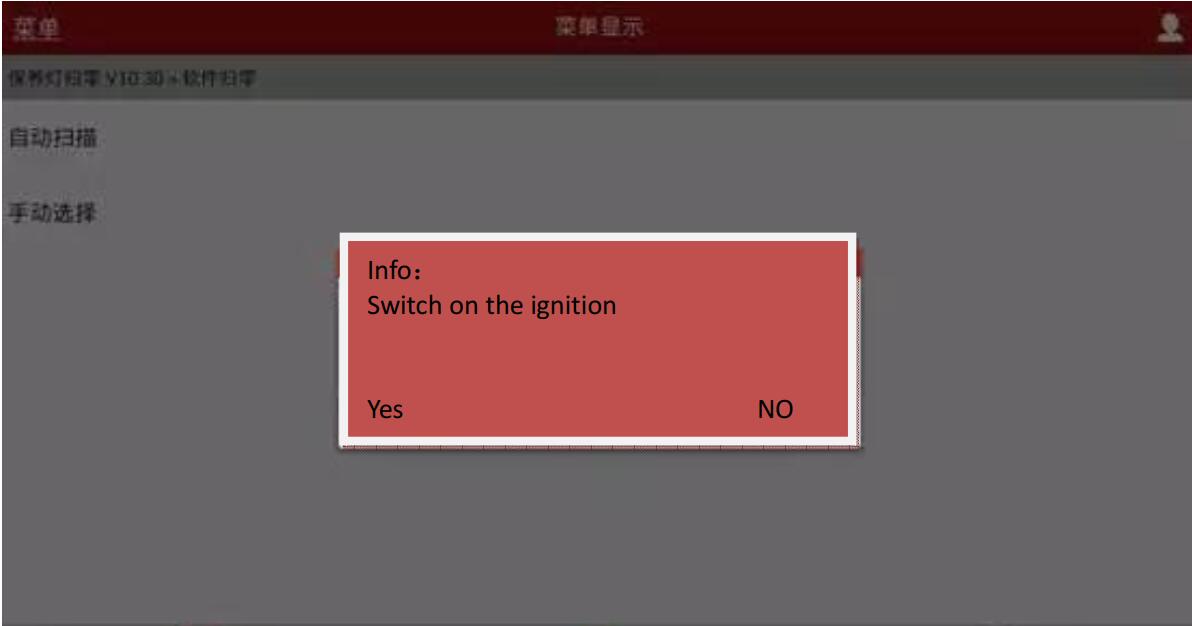
Switch on ignition, press “OK”.
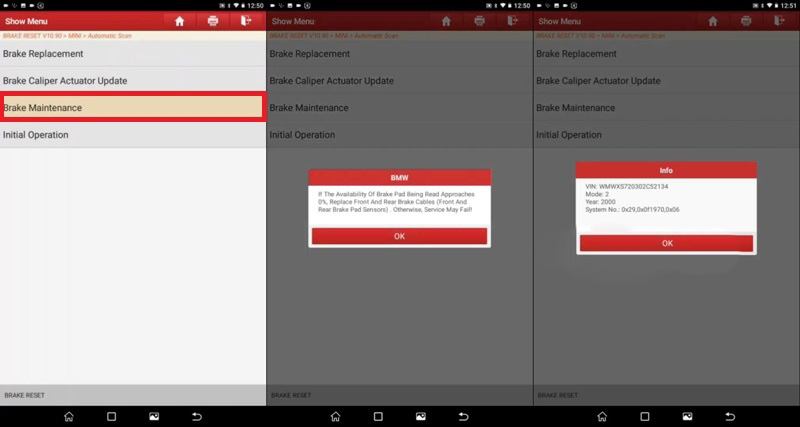
Automatic scan >> Brake maintenance >> OK >> OK

launch-x431-pro-mini-replace-mini-cooper-s-f55-brake-pad-8
launch-x431-pro-mini-replace-mini-cooper-s-f55-brake-pad-9
launch-x431-pro-mini-replace-mini-cooper-s-f55-brake-pad-10

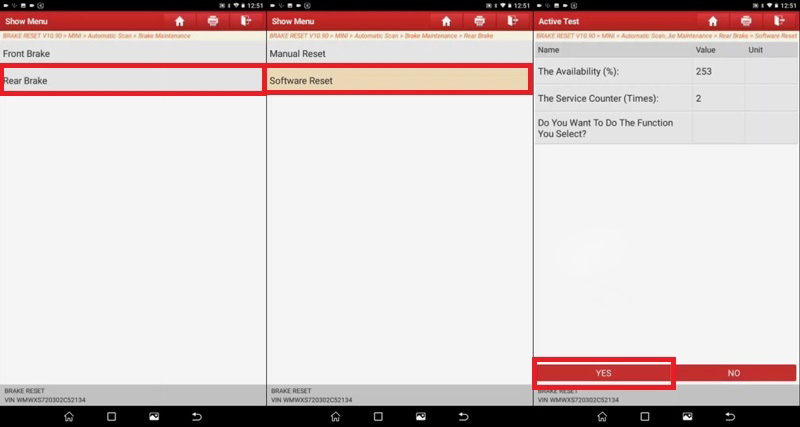
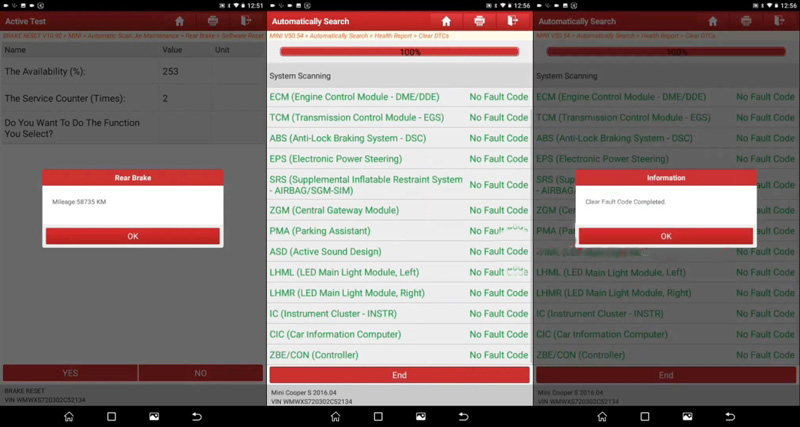
Rear brake >> Software reset >> Yes >> OK
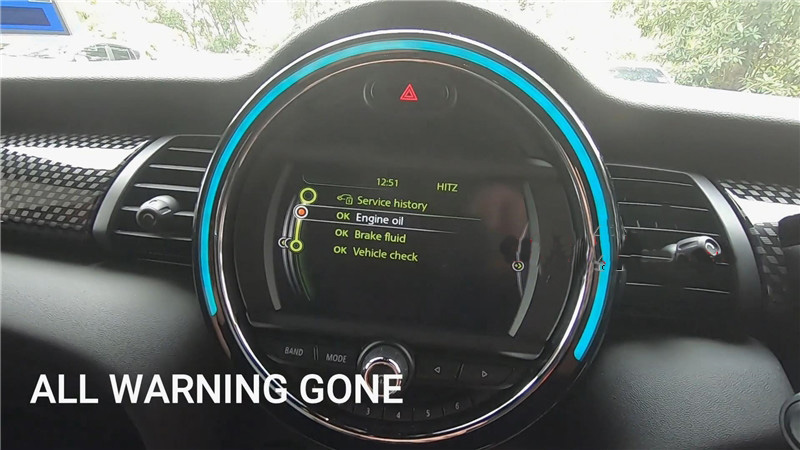
Now go back to diagnose again and clear DTCs in health report, clear fault codes completed. The rear brake pads warning light has gone.

launch-x431-pro-mini-replace-mini-cooper-s-f55-brake-pad-11
launch-x431-pro-mini-replace-mini-cooper-s-f55-brake-pad-12
launch-x431-pro-mini-replace-mini-cooper-s-f55-brake-pad-13

It is applied to Launch X431 V and Launch X431 V+ diagnostic scanner as well.

2021年3月28日星期日

What laptop do I need for IDS or SDD


What-laptop-do-I-need-for-IDS-or-SDD

1. What the minimum spec of the laptop i want to use need to be for IDS or SDD Software

Our kits are designed to work on any laptop. We recommend a minimum spec of: Core2duo, 2gb ram, 50gb free hard drive space.

2. Which OS do i need to run IDS SDD on my laptop ?

For diffrent version the OS requirements may differ. Eg V128 V131 need windows XP SP3 & V138 or higher need windows 7 Professional.

3. What is Native install and Virtual Install Mean ?

When you install the program on your laptop this is called a native install. If you are using the virtual machines softwares that come ready to load and don’t need installing in your pc and can use after downloading and extracting in the VMware or Virtualbox softwares.

2021年3月23日星期二

Humzor NexzDAS Pro Scan Tool Feedback and Using Tips


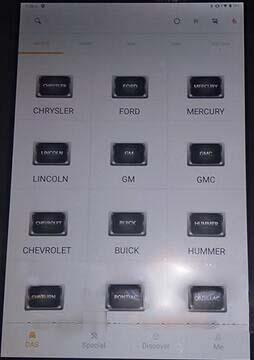
In my personal experience, Humzor NexzDAS Pro is a great scan tool (connected to 2015 Toyota, 2014 Honda Accord, Hyundai Elantra 2017 US), it does not let me down, it can do what I paid. If it can’t be connected to the car, you must correctly register, login, bind the machine, update the newest software, turn on the location, connect the Bluetooth, switch to the language you need etc.

Prepare:
Register and login
Bind Device
Update the newest version
Ready to use

Alright, let’s read my experience with Humzor NexzDAS Pro:

Humzor NexzDAS Pro scan tool is really great I can perform actuation test and has bidirectional control on my 2015 Toyota where I was not able to do much of anything with my car on other scanner tools this was is more than able to. I highly recommend this tool. I recently tried autel mk 808 MX808 and matco Maglite wich matco was the worst of the 3 others, the humzor is better than the other 3.

Humzor-NexzDAS-Pro-Scan-Tool-Feedback-and-Using-Tips-1 (2)
Humzor-NexzDAS-Pro-Scan-Tool-Feedback-and-Using-Tips-2 (2)
Humzor-NexzDAS-Pro-Scan-Tool-Feedback-and-Using-Tips-3 (2)

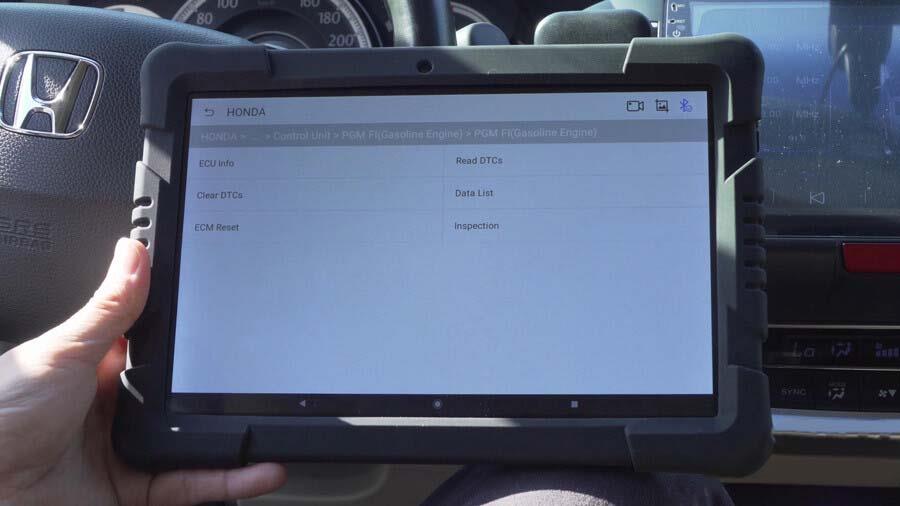
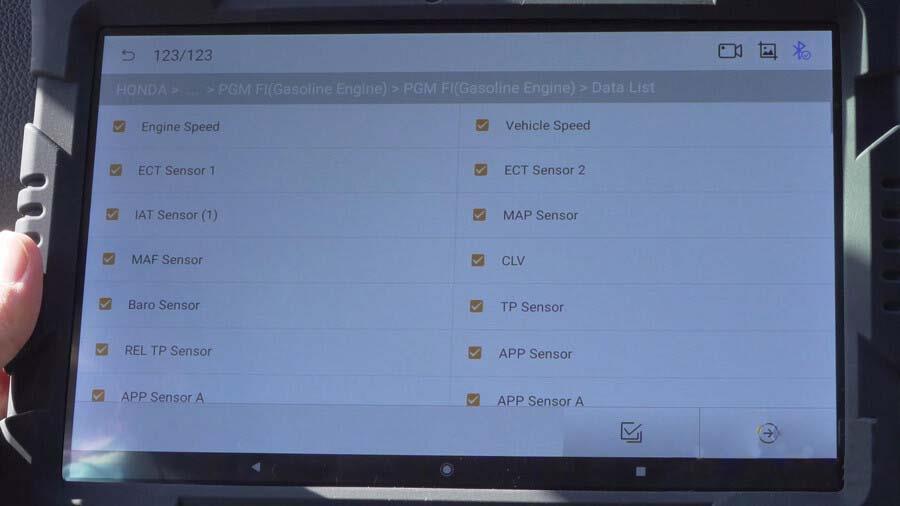
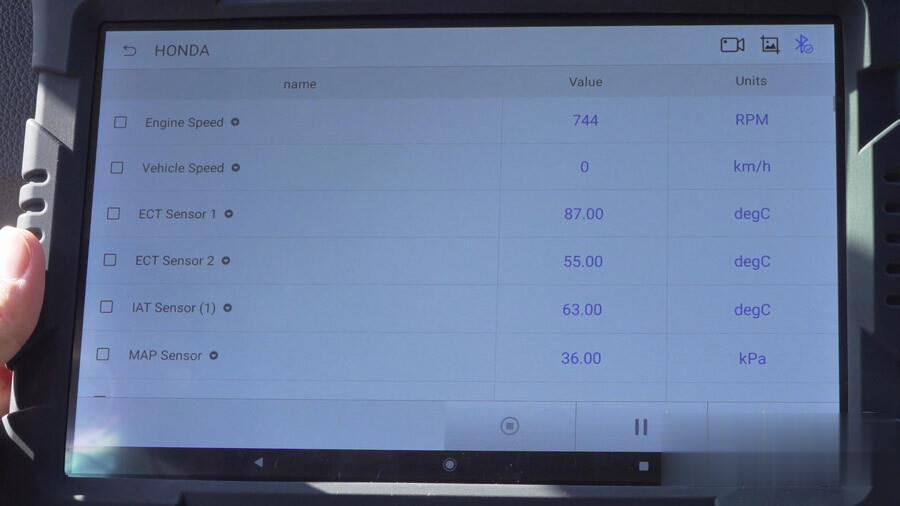
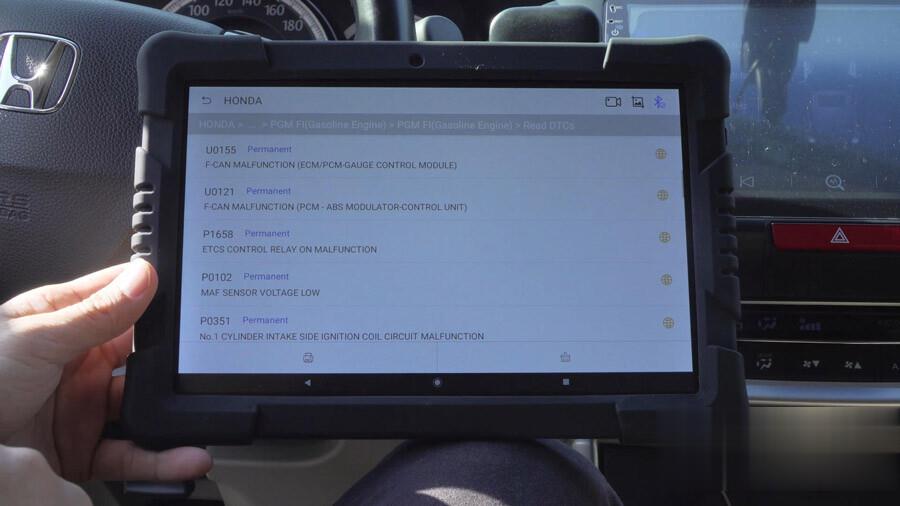
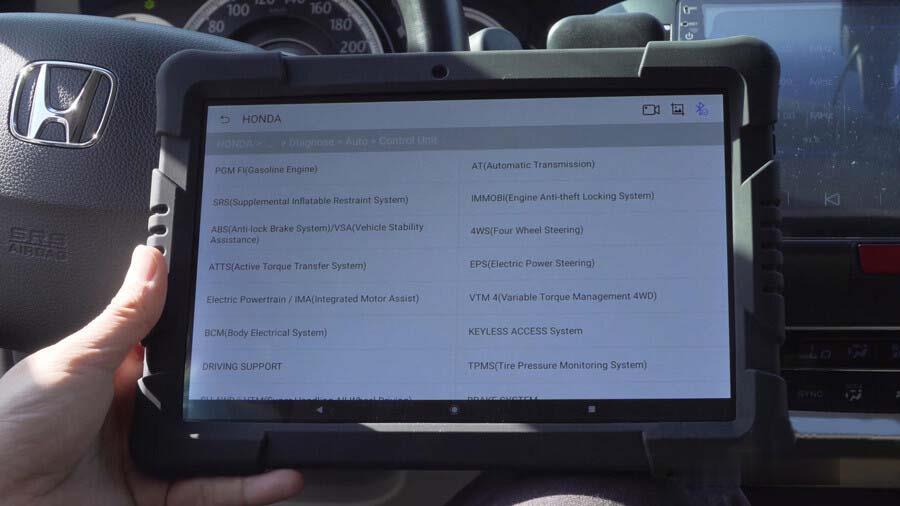
Humzor NexzDAS Pro can be connected to 2014 Honda Accord, path: Asian -> Honda -> Japan -> diagnose -> Auto -> control unit ( The tablet can access to dozens of Honda modules) -> Engine-> Gasoline engine -> Read ECU information -> read DTCs -> clear DTCs -> Data List -> ECM reset and some special functions.

And it can read the data stream, can read the fault code and clear the trouble codes.

Humzor-NexzDAS-Pro-Scan-Tool-Feedback-and-Using-Tips-4 (2)
Humzor-NexzDAS-Pro-Scan-Tool-Feedback-and-Using-Tips-5 (2)
Humzor-NexzDAS-Pro-Scan-Tool-Feedback-and-Using-Tips-6 (2)
Humzor-NexzDAS-Pro-Scan-Tool-Feedback-and-Using-Tips-7 (2)
Humzor-NexzDAS-Pro-Scan-Tool-Feedback-and-Using-Tips-8 (2)

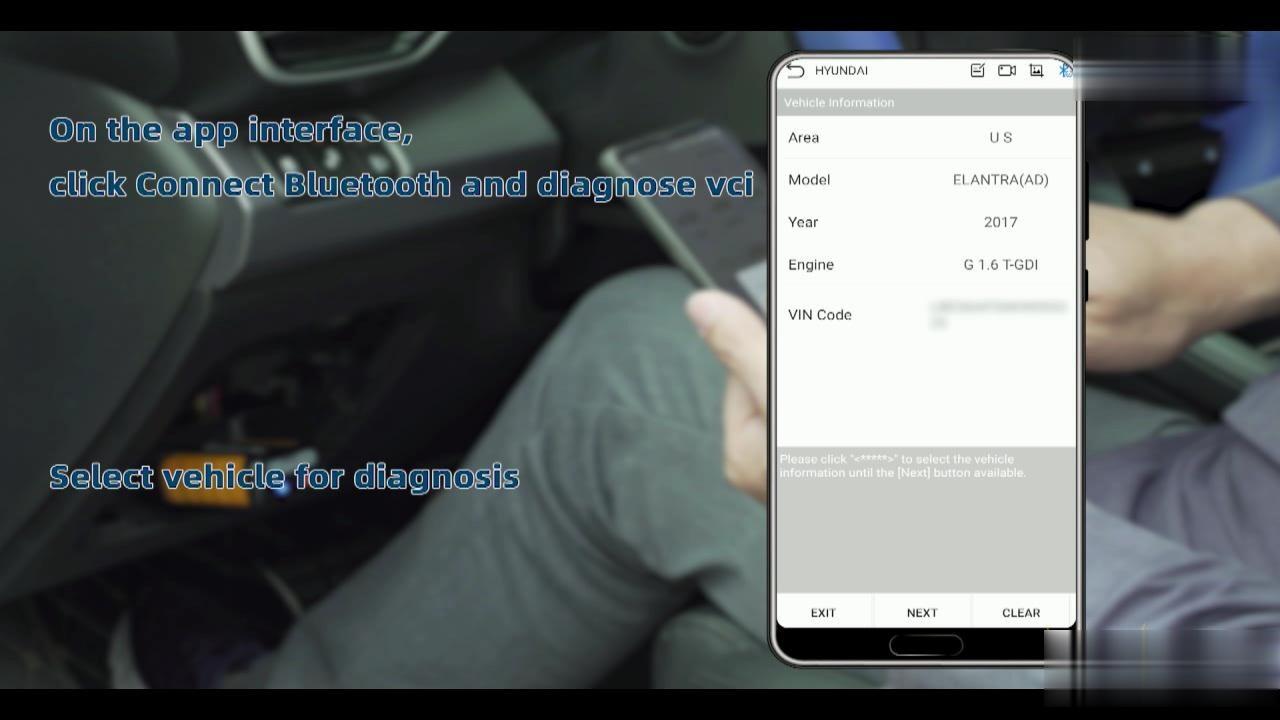
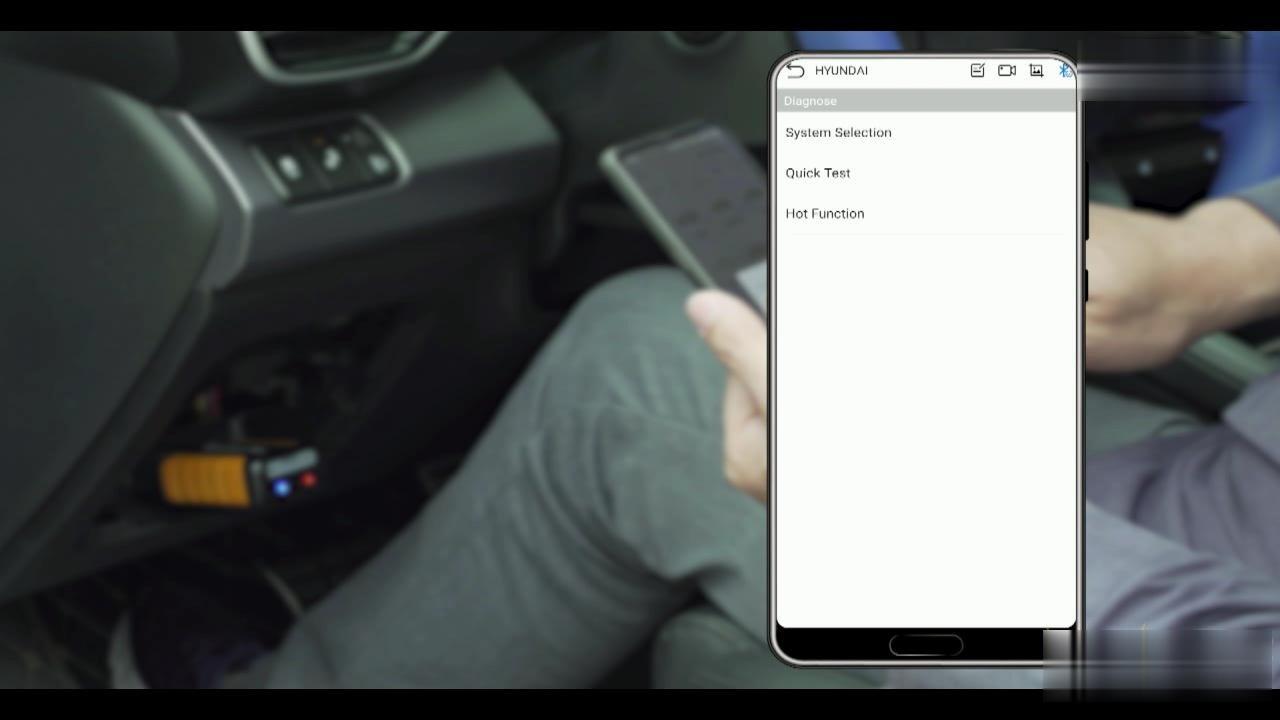
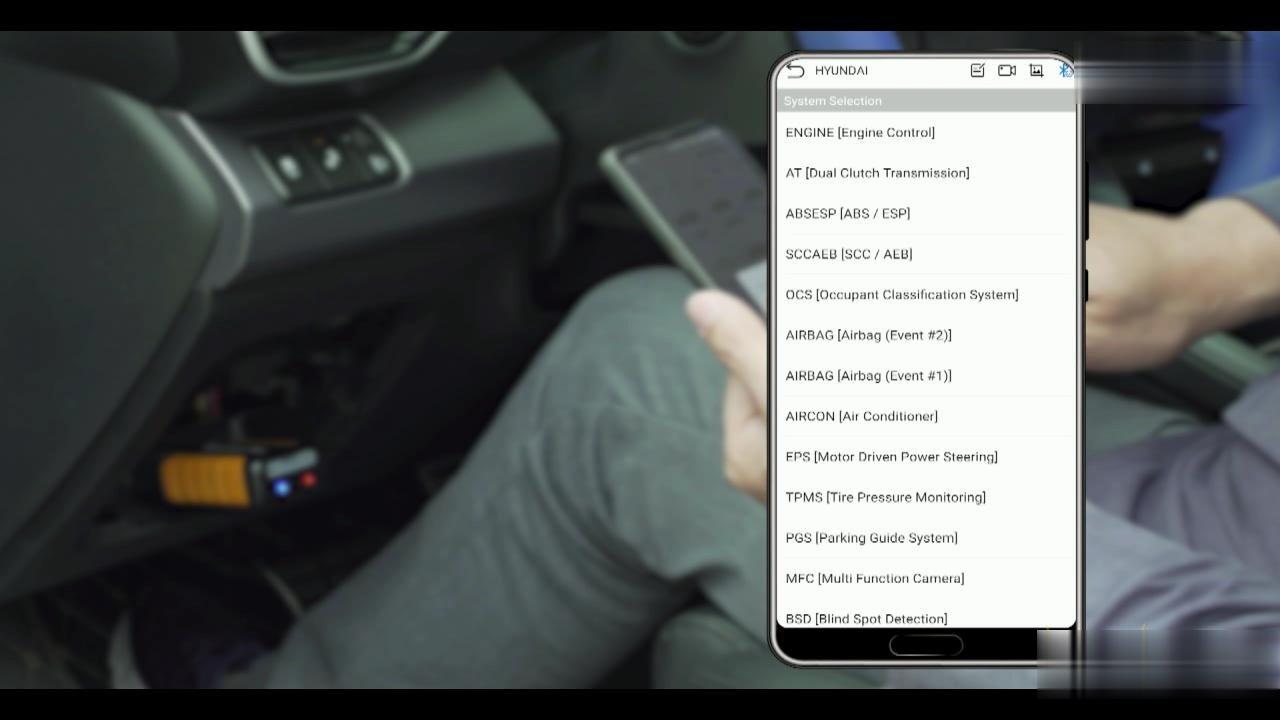
Humzor NexzDAS Pro can be connected to Hyundai Elantra 2017 (US), path: US -> Elantra (AD)->Engine :G 1.6 T-GDI -> Diagnose -> System selection.

Humzor-NexzDAS-Pro-Scan-Tool-Feedback-and-Using-Tips-9 (2)
Humzor-NexzDAS-Pro-Scan-Tool-Feedback-and-Using-Tips-10 (2)
Humzor-NexzDAS-Pro-Scan-Tool-Feedback-and-Using-Tips-11 (2)
Humzor-NexzDAS-Pro-Scan-Tool-Feedback-and-Using-Tips-12 (2)

For most older cars, must use the standard obd11 setting on the top.

It is nice that the Bluetooth is very handy.

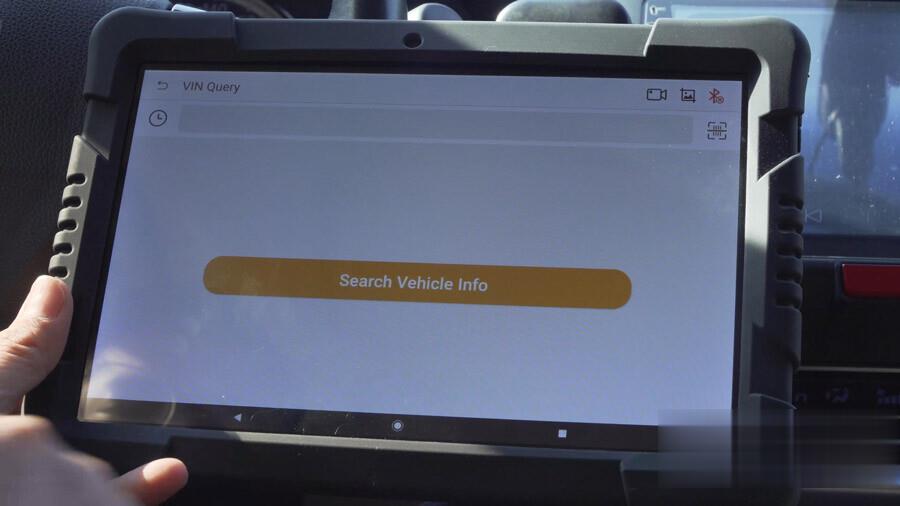
When I bought Humzor NexzDAS Pro long time ago, it does not come with user manual, today it has the clear Humzor NexzDAS PRO user manual, it is uploaded here (a total of page 49). It contains genera introduction, getting started, software installation and running, registration and login, diagnostics, key programming, APP store, DTC query, VIN query, personal (info), feedback, setting etc.

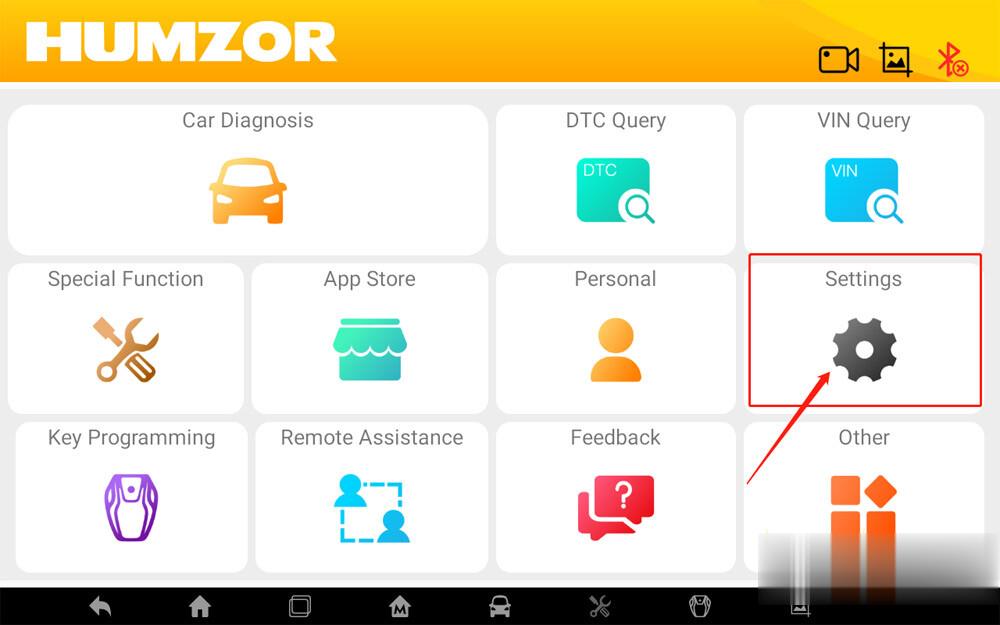
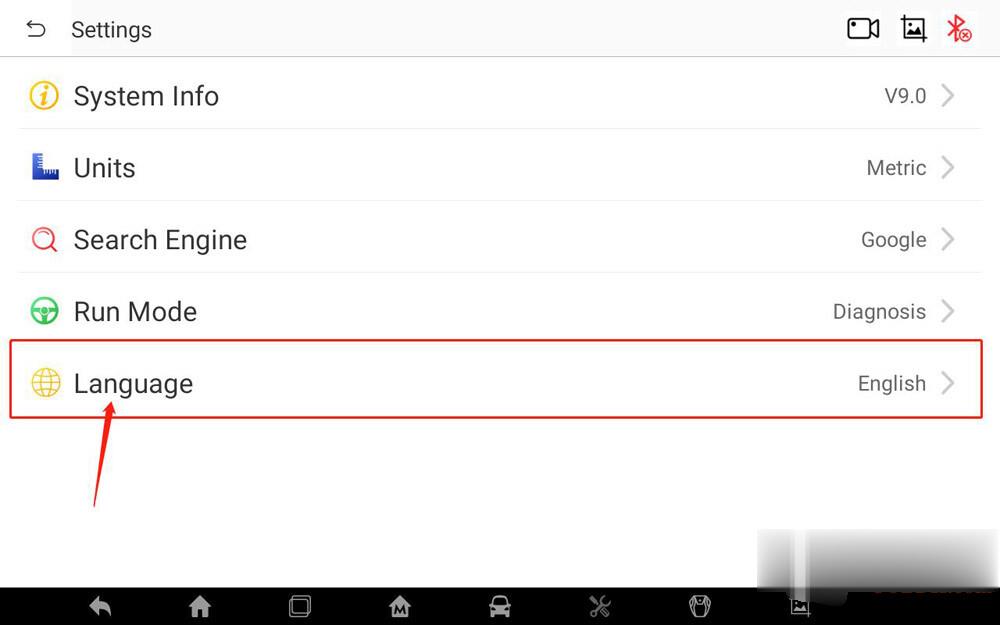
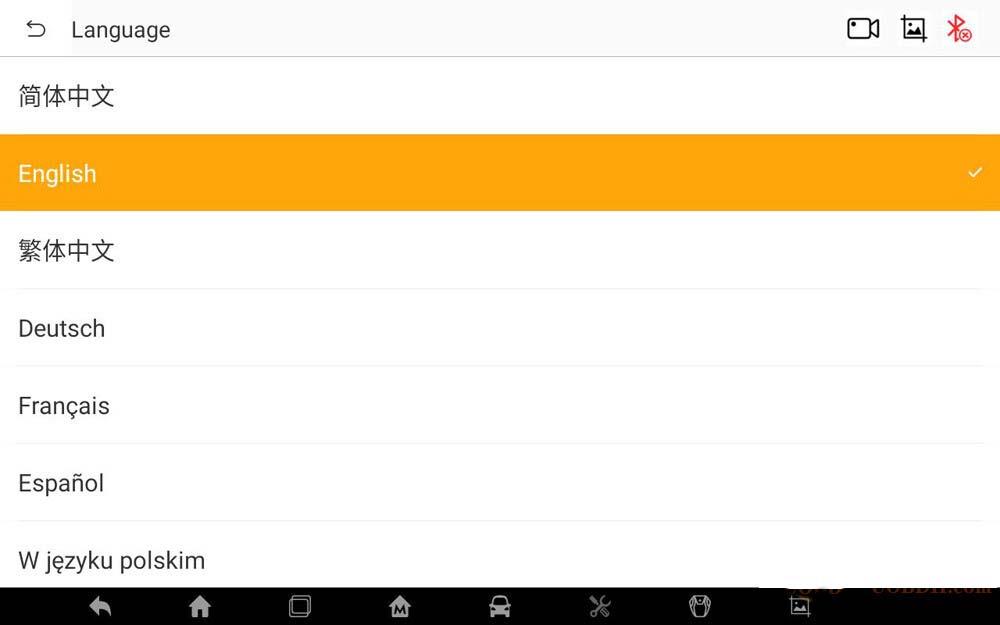
I learn that some users have difficulty to switch language, I’d like to share how I did it:

1.  On the Settings interface, click “Language”, the system will guide you to the language selection interface
2.  Click the language you need to display, the language switch setting completes.

Humzor-NexzDAS-Pro-Scan-Tool-Feedback-and-Using-Tips-13 (2)
Humzor-NexzDAS-Pro-Scan-Tool-Feedback-and-Using-Tips-14 (2)
Humzor-NexzDAS-Pro-Scan-Tool-Feedback-and-Using-Tips-15 (2)

And I’d like to share the solution to “Do not connect to the car”.

1.  Check whether Bluetooth is connected normally.
2.  Turn on the “Location” of Humzor NexzDAS Pro(it is the same as you turn onthe location on your phone.)

Humzor-NexzDAS-Pro-Scan-Tool-Feedback-and-Using-Tips-16 (2)

(Image: Bluetooth connection method)

Hope it helps!