2021年9月15日星期三

Autel IM608 Repeats EIS Prompt for Benz W220 Password Reading


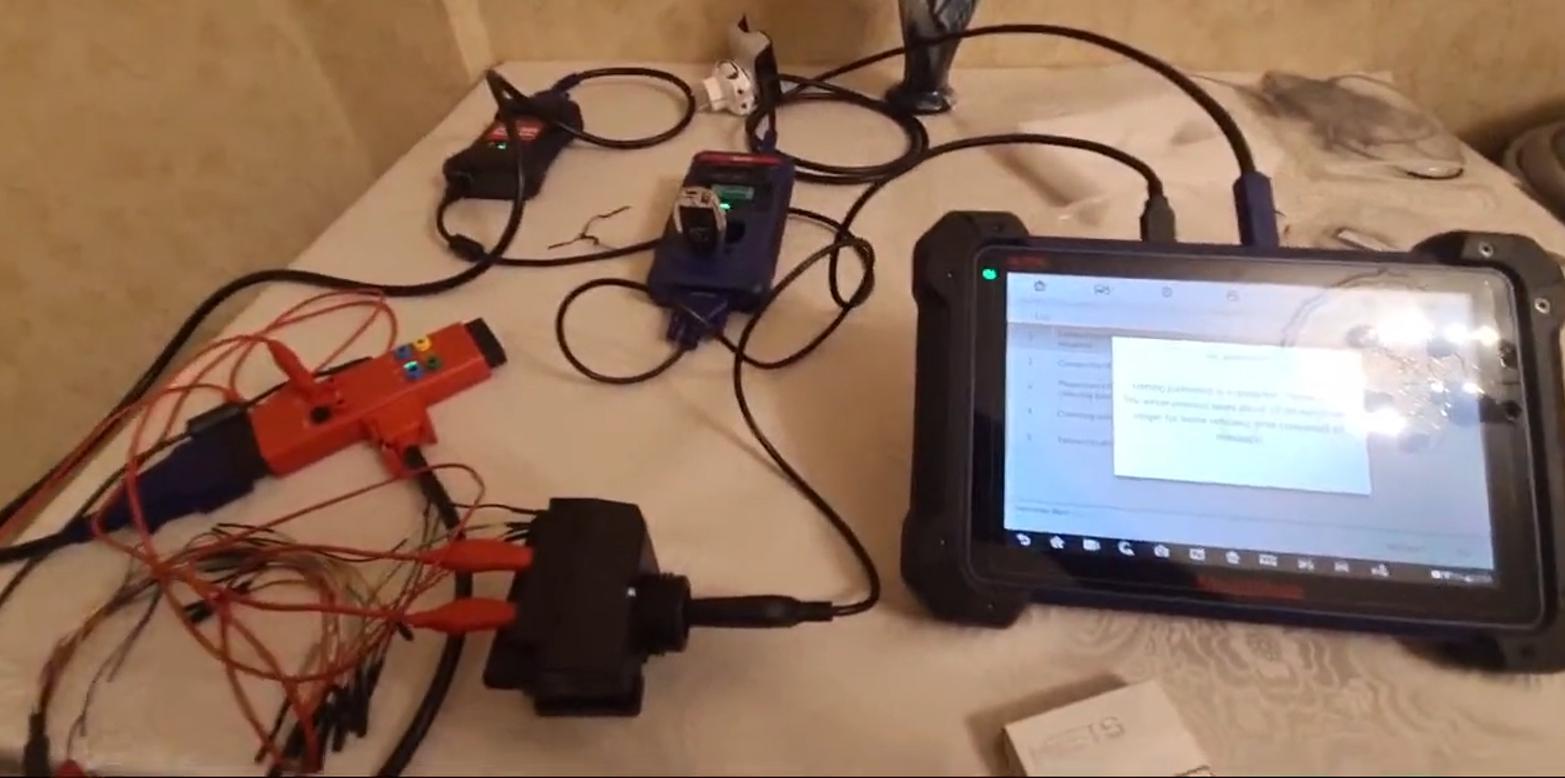
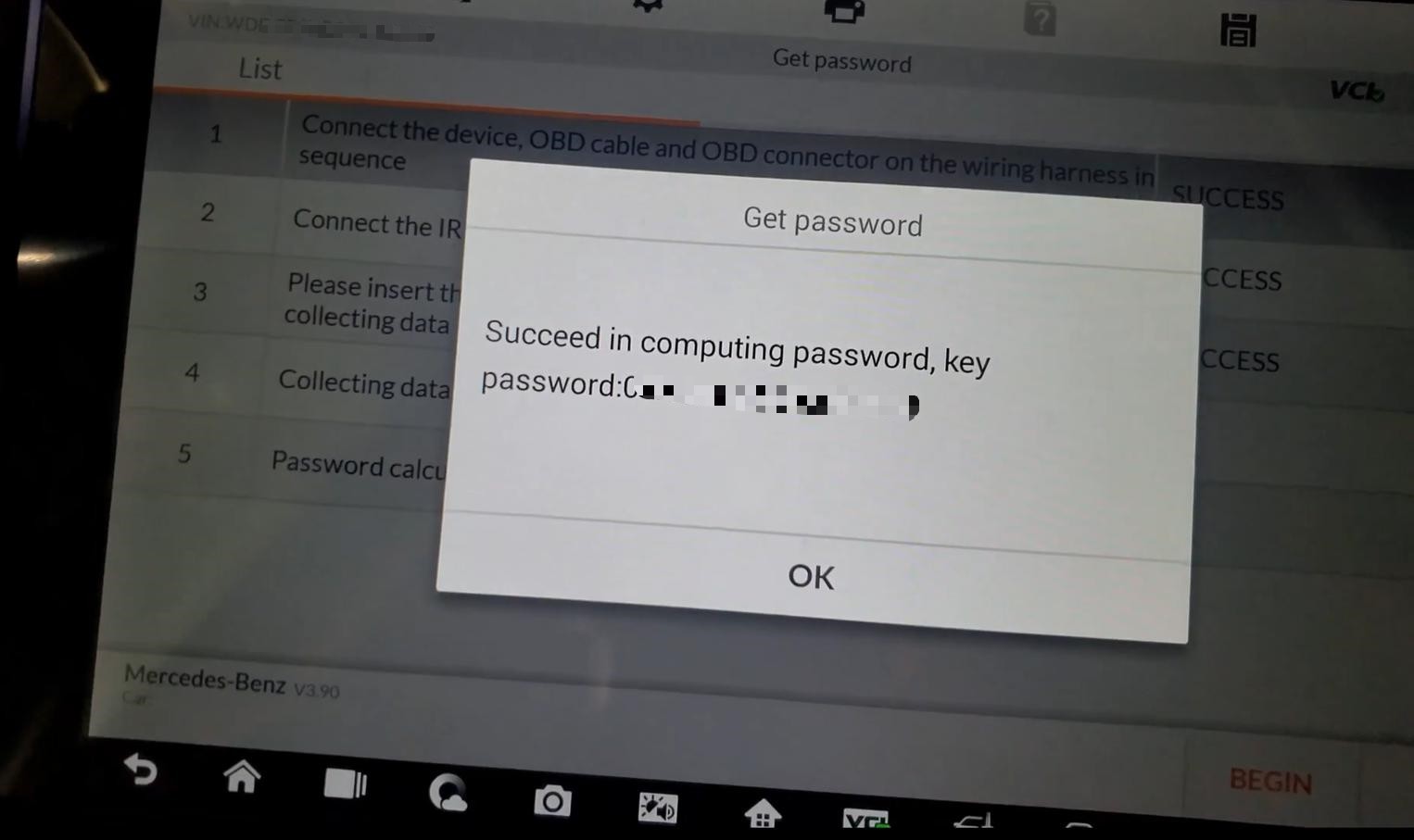
One user gave a feedback that during the password calculation process of Autel MaxiIM IM608 it’s asking him to insert the key into the EIS for 10 seconds. What puzzles him is that the prompt displays almost every minute until the calculation success.
autel-im608-repeats-eis-prompt-for-benz-w220-password-reading-1

He’d done Benz key programming for several times but never had this happen before, and this time the car is Benz W220 2003. After repeating the step for many times, finally he got the password.

Besides, this issue happens on others as well. They said they’ve done this about 12 or 15 times to get the password and it’s normal to work on old Benz models.

Possible reason and solution:

Here our technical support believed that because of the old model the transmission signals of the EIS that turns rusty weakens. So they’d better try more time as the prompt.

In addition, our technical support prompts that there are three modes to calculate the Benz password by Autel MaxiIM IM608: On Vehicle, On bench(G-Box) and On bench. So make sure the connections are correct as the prompts and diagrams of different modes. For instance, On Vehicle mode often requires a bypass; Care the connections when Autel G-Box2 Adapter is needed, etc.

autel-im608-repeats-eis-prompt-for-benz-w220-password-reading-2

Therefore, the prompt “Insert the ignition key into the EIS and wait for 10s” is normal, just follow the prompts and finally it will give you the password.

autel-im608-repeats-eis-prompt-for-benz-w220-password-reading-3

Done!

Porsche EEPROM Programming with Autel IM608 Pro


Autel IM608 Pro is not only an on-vehicle programmer but also an EEPROM programmer. One tablet supports multiple ways to replace car keys, which can efficiently support your repair works. This post will show you that how to use it to program EEPROM on a Porsche.

EEPROM is hard to navigate. There are two scenarios for using EEPROM.

*   One is if you want to add a new key using certain vehicles like BMW, AUDI and Porsche.
*   Another is if you replace an ECU like the engine and need to read the old unit’s info.

It’s easy to program a Porsche key using Autel IM608 Pro and D flash. That means we will read the data from a chip.

Procedures:
First, take out the chipset from the immobilizer system
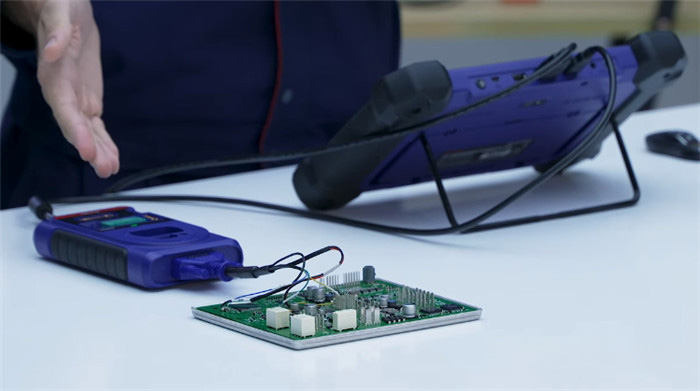
We need to read info from the chipset by connecting it with XP400 Pro key programmer.
Make sure you’re connected to the key programmer and the programmer is connected to the IM608 Pro tablet.

Porsche-EEPROM-Programming-with-Autel-IM608-Pro-1

Next, go to learn key for Porsche.
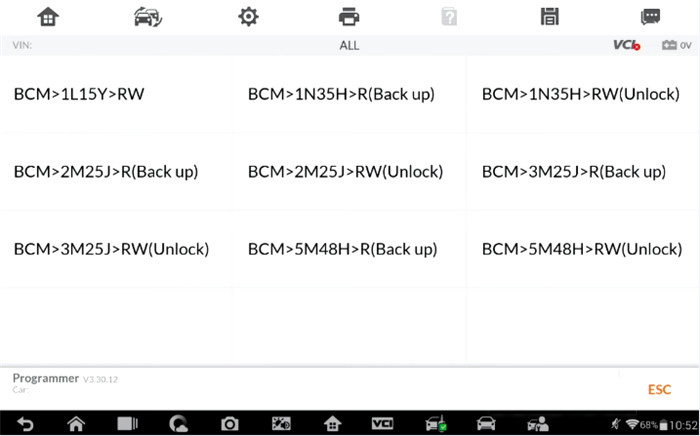
Select Programmer>> Accept the disclaimer>> Chip (EEPROM, MCU, ECU)>> Chip read& write>> Immobilizer>> PORSCHE>> BCM>5M48H>R (Back up)

Porsche-EEPROM-Programming-with-Autel-IM608-Pro-2

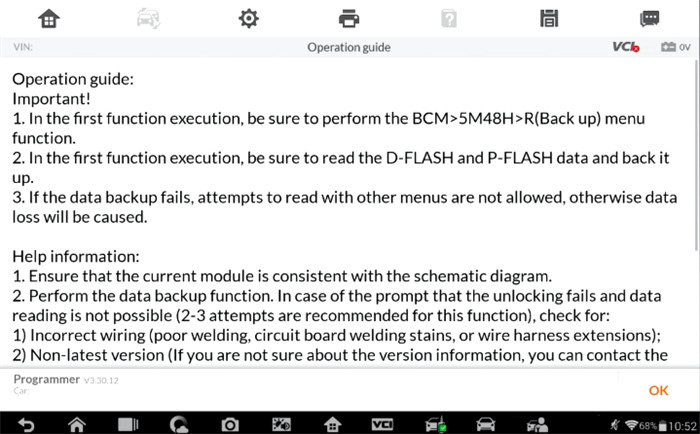
Read the operation guide and helpful information carefully

Porsche-EEPROM-Programming-with-Autel-IM608-Pro-3
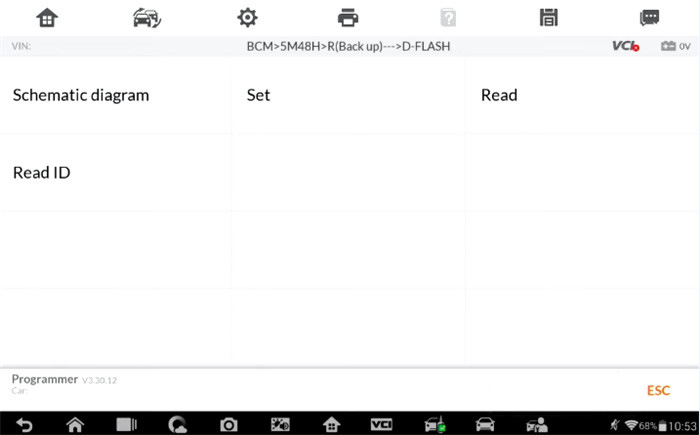
Since we’re reading data, we need to select “D- FLASH”
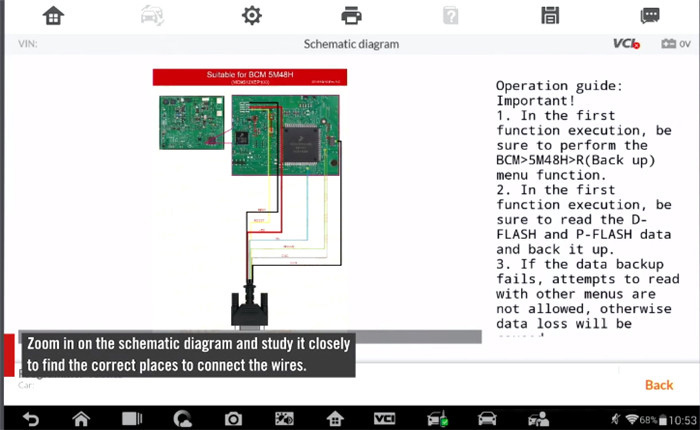
Then we can view the schematic diagram

Porsche-EEPROM-Programming-with-Autel-IM608-Pro-4

Zoom in on the schematic diagram and study it closely to find the correct places to connect the wires.
Then follow the on-screen instructions to do

Porsche-EEPROM-Programming-with-Autel-IM608-Pro-5

You need to cut a line in one spot and remove two other parts, then connect the wires accordingly. They are color coded and labeled to help you out.

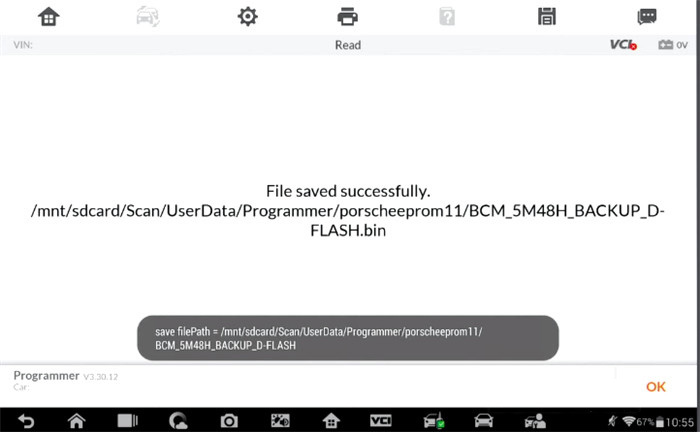
Once the wires are connected, go back and select read, this will read the info from the ECU and record it in the tablet. We will use the info to learn a new key.

When the data has been read out, save the file into a new folder and call it whatever you want (such as porscheeeprom11).

After that, exit and go back to the home screen and select immobilizer function.
Select Porsche or auto scan the VIN
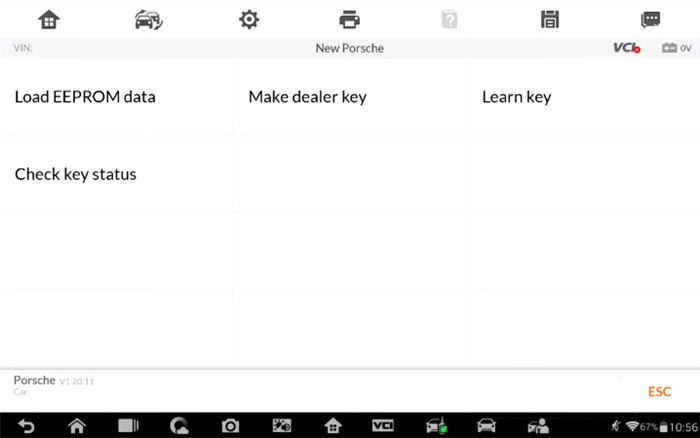
Select Expert Mode>> New Porsche

Porsche-EEPROM-Programming-with-Autel-IM608-Pro-6

1.Load EEPROM data
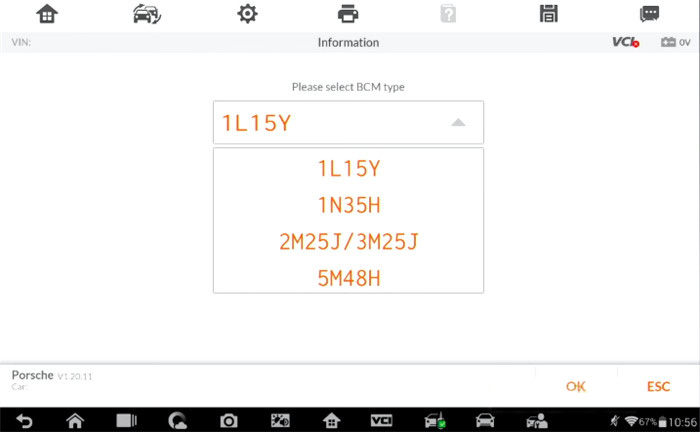
Find the BCM type located on the chipset, then go into the programmer file and find your file porscheeeprom.

Porsche-EEPROM-Programming-with-Autel-IM608-Pro-7

It’s beneficial for you at this point to take a picture of the info. Just in case it doesn’t load in the future.

Porsche-EEPROM-Programming-with-Autel-IM608-Pro-8

2.Make dealer key
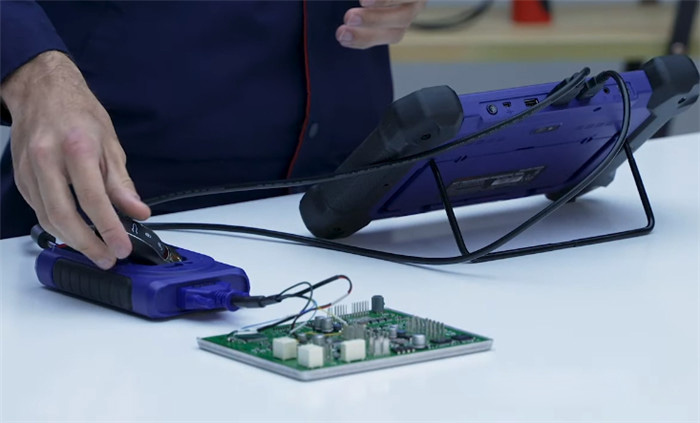
Put a blank key into the Autel XP400 Pro key programmer, then select make dealer key

Porsche-EEPROM-Programming-with-Autel-IM608-Pro-10

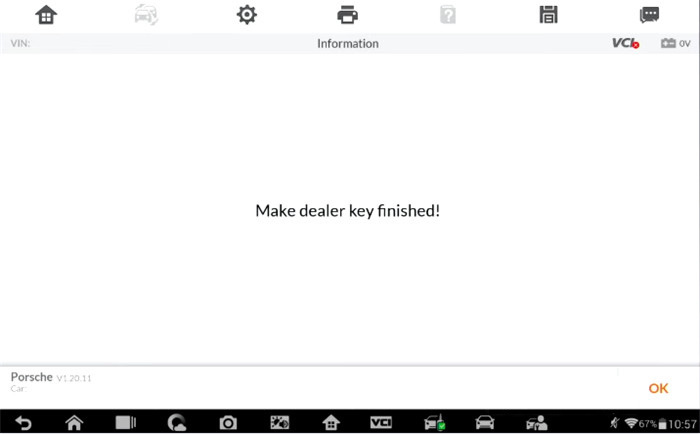
Once make dealer key is successful, move on to key learning process.

Porsche-EEPROM-Programming-with-Autel-IM608-Pro-11

3.Learn key
You need to connect your JVCI into the OBD2 port and learn the key
Make sure a skilled professional is performing the EEPROM process.

Done!

That’s the whole process to program new key to Porsche with Autel IM608 Pro with XP400 Pro.

2021年7月30日星期五

VXDIAG Ford IDS Parameter Programming Data Error


Problem:

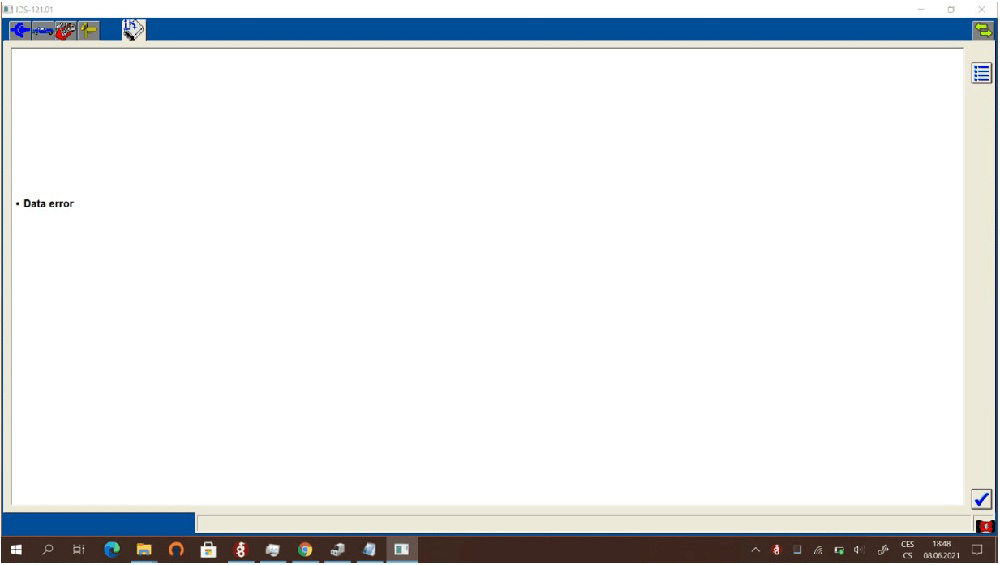
I got a problem when trying to do parameter programming with the vxdiag vcx nano ford IDS V121.01. It gave a data error. It cannot be done?

VXDIAG-Ford-IDS-Parameter-Programming-Data-Error-1
VXDIAG-Ford-IDS-Parameter-Programming-Data-Error-2

Solution:

Parameter programming requires online subscription.

We don’t provide an online account.

Ford Parameter programming example:

i.e Ford Mondeo 2007

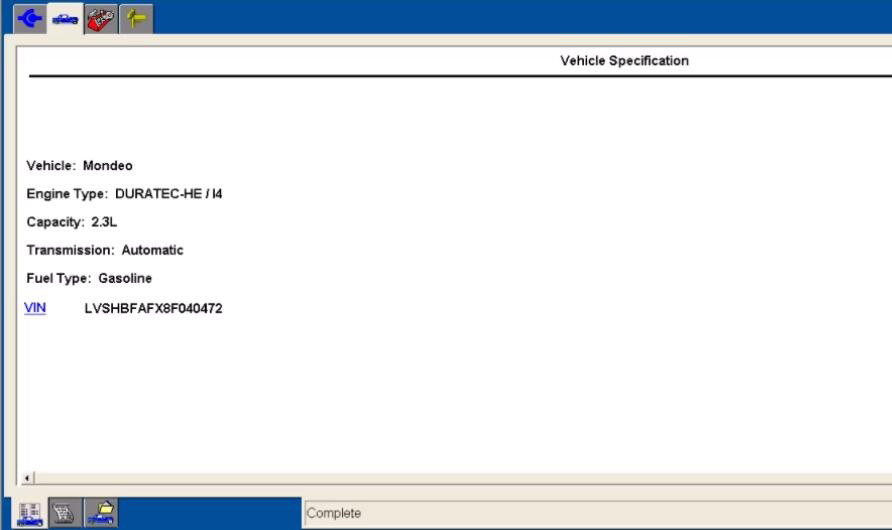
Start New Session-All other-Vehicle Specification

VXDIAG-Ford-IDS-Parameter-Programming-Data-Error-3

It will show the VIN
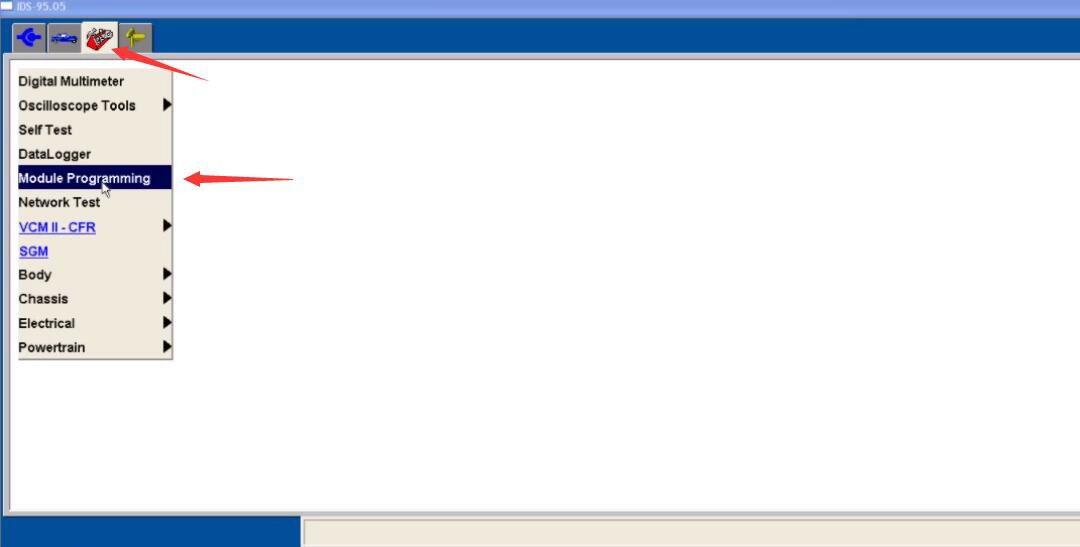
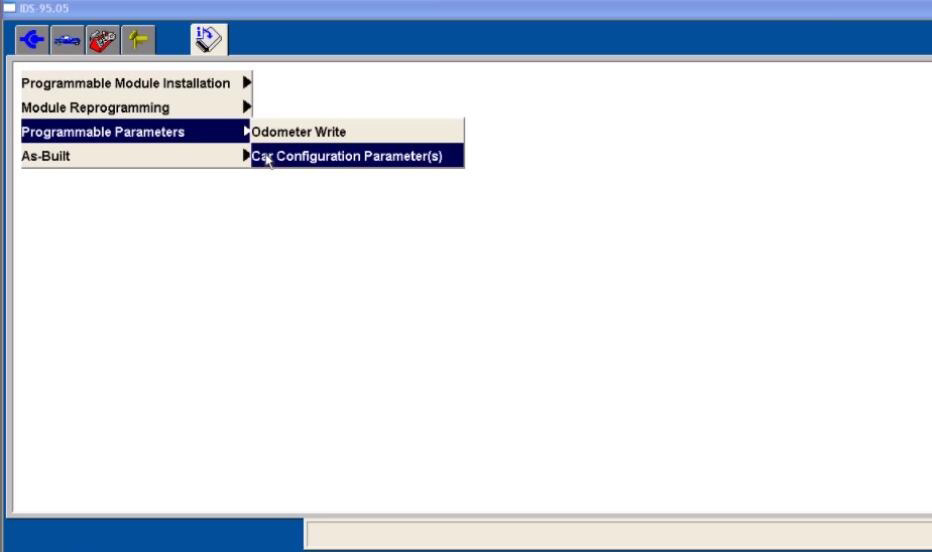
Click menu to select -Module Programming-Programming Parameters- Car Configuration Parameter(s)

VXDIAG-Ford-IDS-Parameter-Programming-Data-Error-4
VXDIAG-Ford-IDS-Parameter-Programming-Data-Error-5

During Module Programming this module goes through a VIN verification process.

This process compares the VIN in this module with the VIN in other modules on the vehihcle. You may see the VIN verification screen more than once depending upon your response to the question.

VXDIAG-Ford-IDS-Parameter-Programming-Data-Error-6

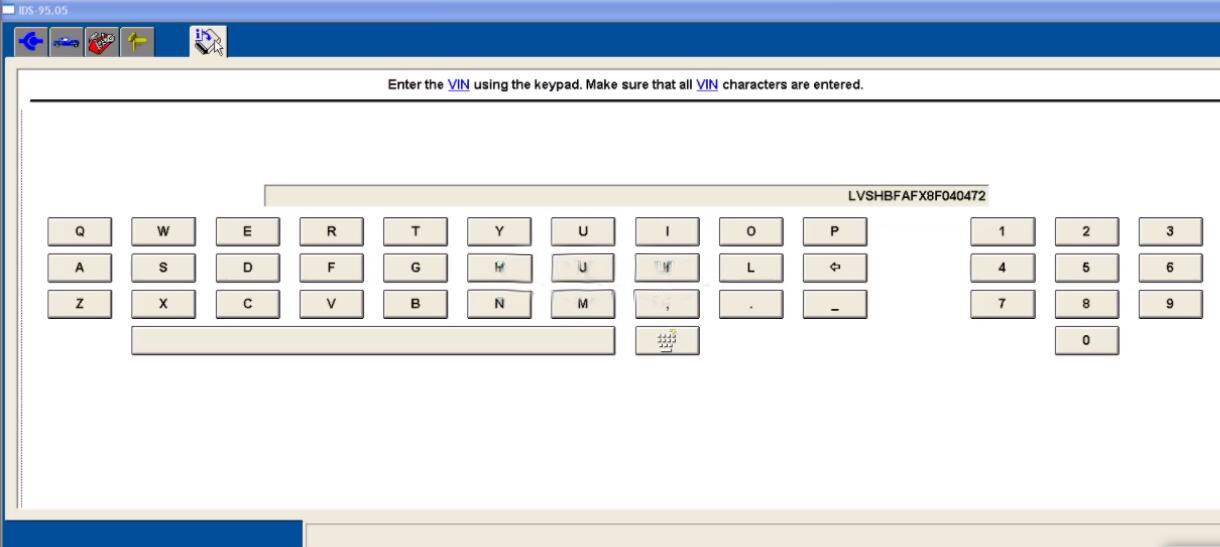
Enter the VIN and confirm

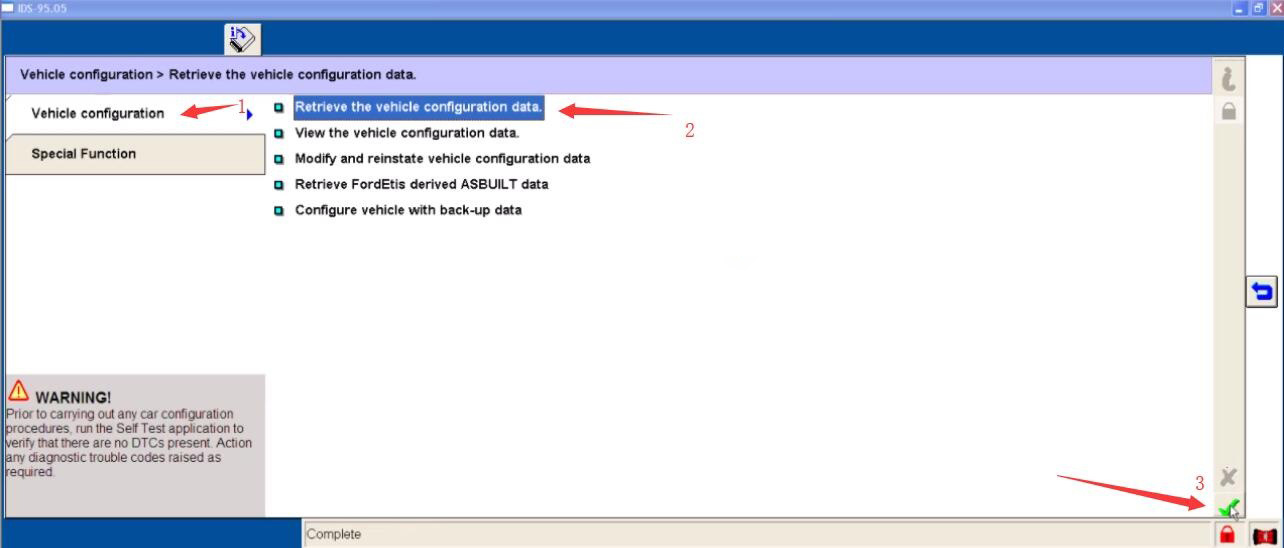
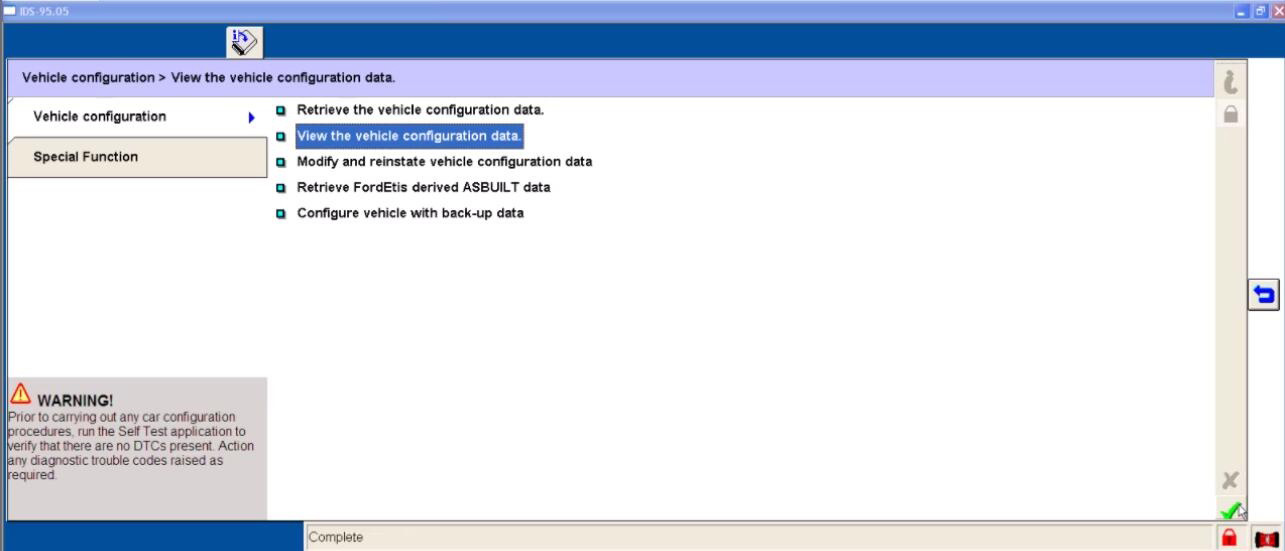
Select “Vehicle configuration”-“Retrieve the vehicle configuration data”

VXDIAG-Ford-IDS-Parameter-Programming-Data-Error-7VXDIAG-Ford-IDS-Parameter-Programming-Data-Error-8

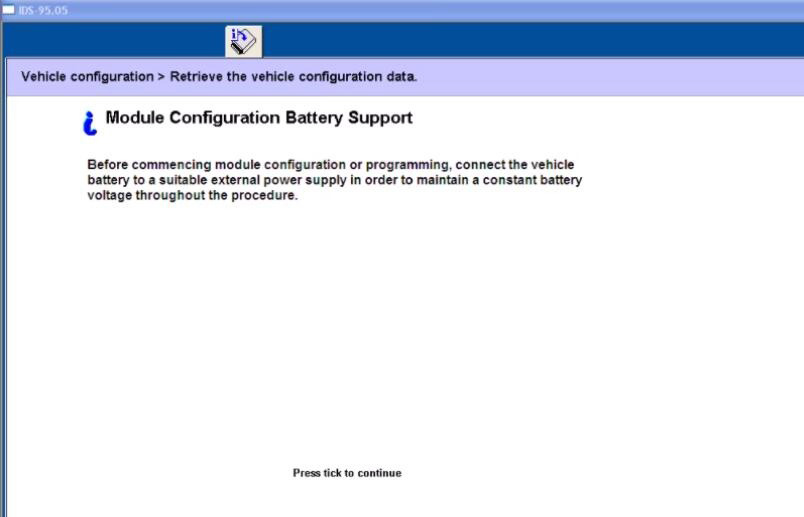
Click tick to continue
It will prompt you with the “Module Configuration Battery Support” information

VXDIAG-Ford-IDS-Parameter-Programming-Data-Error-9

Follow the Ford IDS prompt to set the ignition switch to ON
Operator question

Click tick to continue
Set ignition switch to OFF (Position 0)
Operator Action

Switch the ignition ON
Switch the ignition to off

Press tick to continue

VXDIAG-Ford-IDS-Parameter-Programming-Data-Error-10

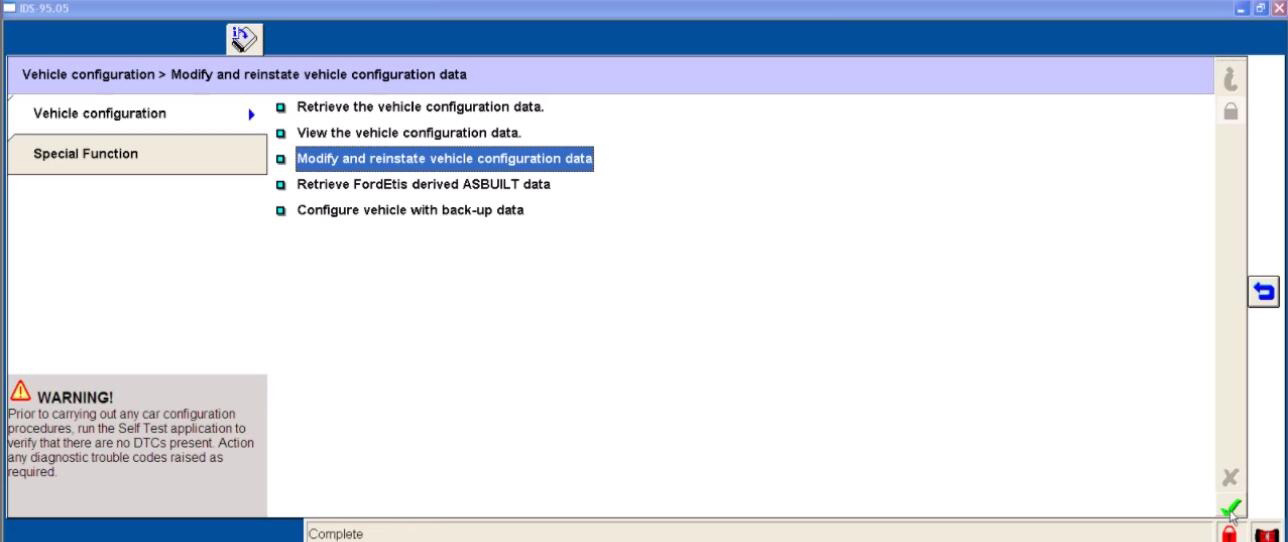
Back to select “Modify and reinstate vehicle configuration data”

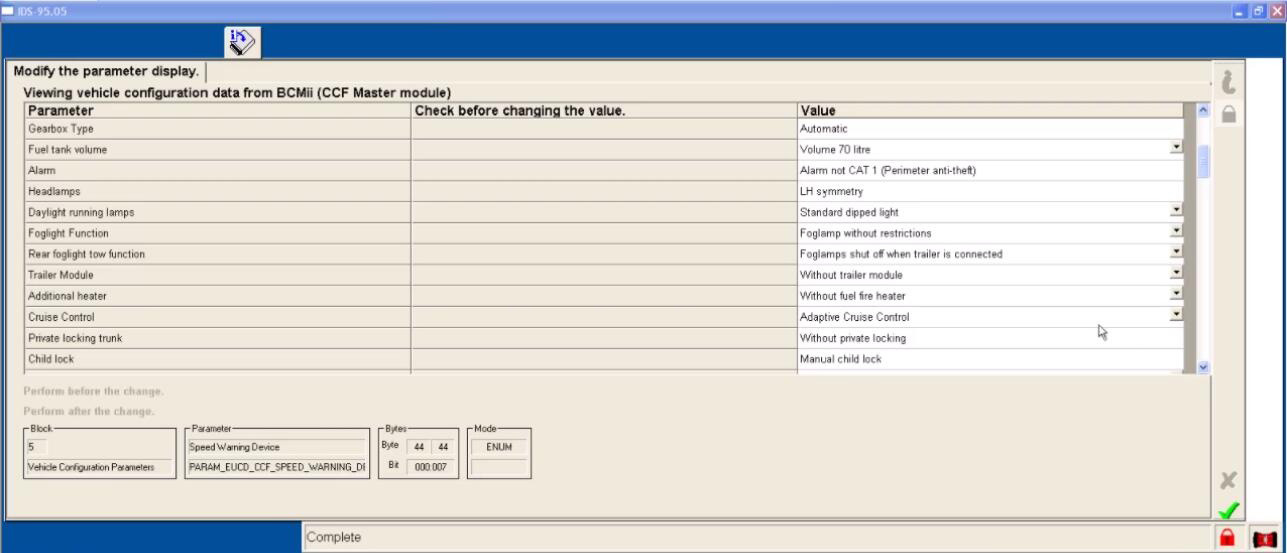
Here you can view vehicle configuration data from BCMii(CCF Master module)

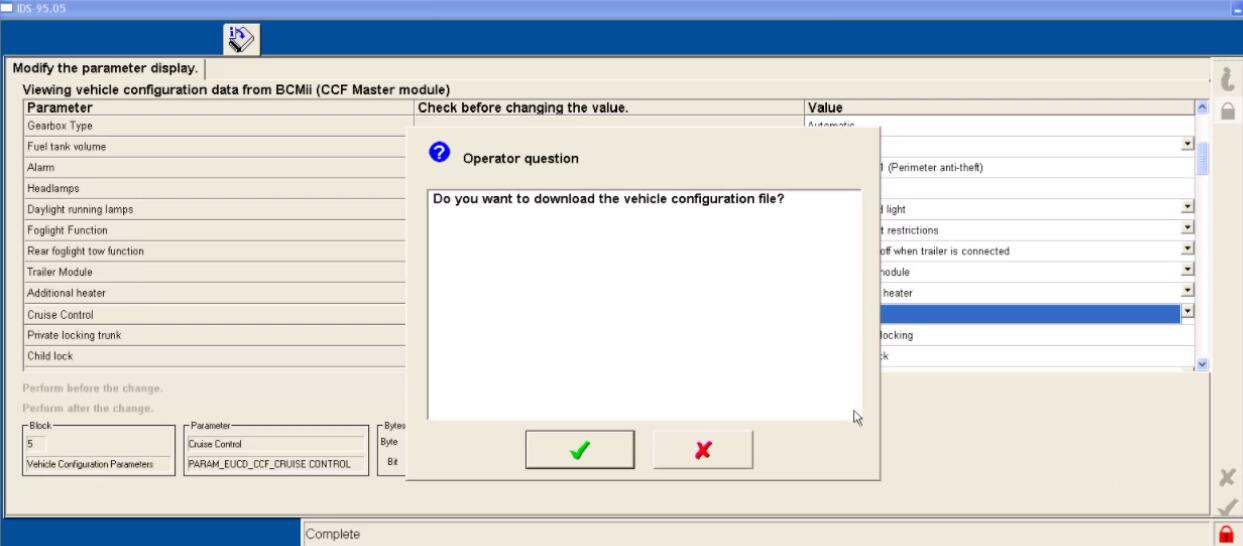
And before you modify the configuration data, you would better to download the data file to make a backup.

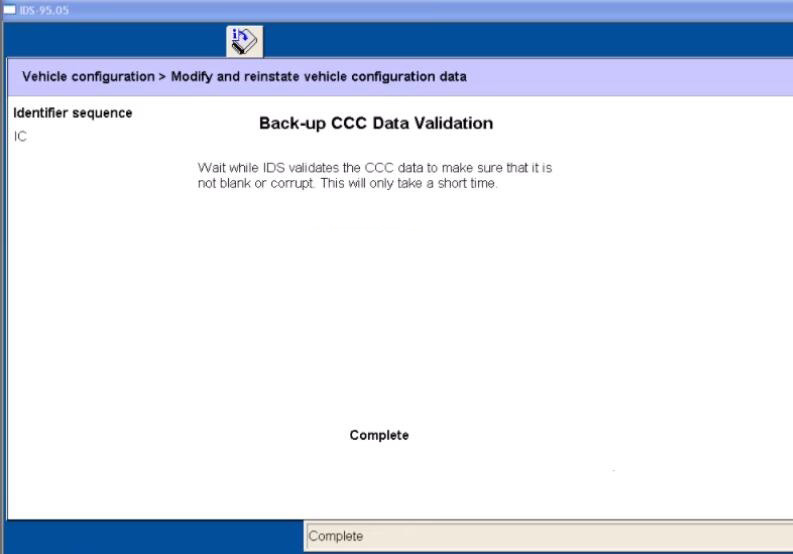
Select the system data file you want and then click the tick to download

VXDIAG-Ford-IDS-Parameter-Programming-Data-Error-11
VXDIAG-Ford-IDS-Parameter-Programming-Data-Error-12

Set the ignition switch to ON

Set ignition switch to OFF(Position 0)

Switch the ignition ON

VXDIAG-Ford-IDS-Parameter-Programming-Data-Error-13

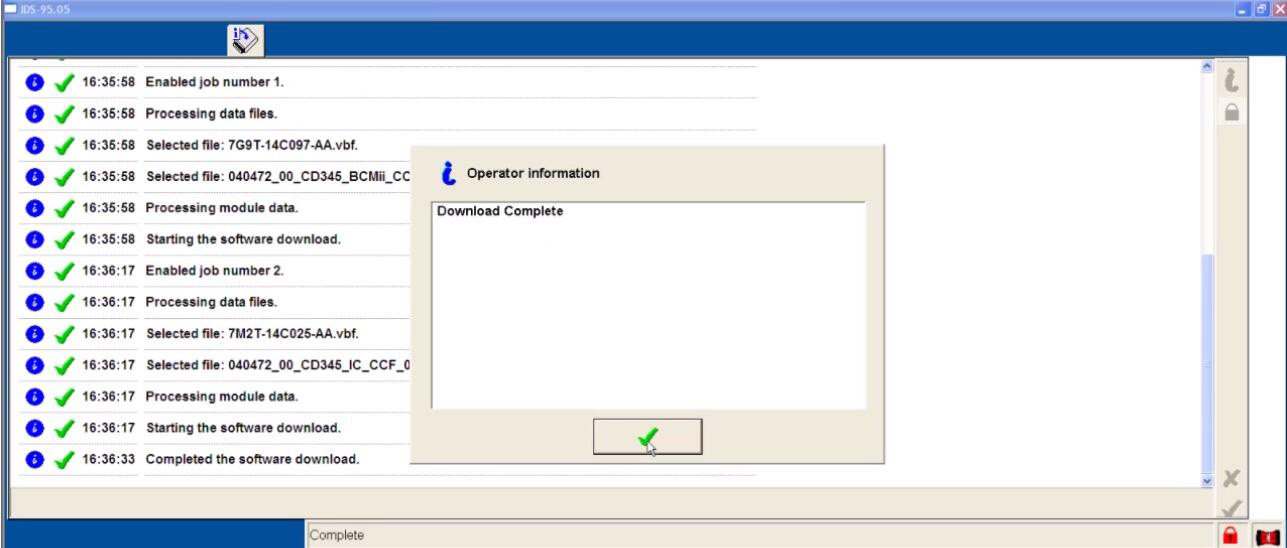
Download complete

Switch the ignition Off

You can view the vehicle configuration data here

VXDIAG-Ford-IDS-Parameter-Programming-Data-Error-14

Done!

BMW Coding Support and Solutions


BMW coding for your BMW 1, 2, 3, 4, 5, 6, 7, X, I, (2004-current E, F, and G, I chassis), and BMW Mini (R5x & F5x) Vehicles using BMW factory software such as INPA, NCS Expert, and BMW Diagnostic Software E-Sys. The features below represent a majority of the conveniences that can be disabled/enabled on your BMW (if applicable to your chassis).

Lights

Amber/Corner lights delete
Angel eyes as DRL
Disable bulb out warnings (disables warm and cold testing of bulbs)
Double flash hazards (not applicable on F-series chassis)
Pathway lighting with the key fob (follow me home lights)
Fog and high beams on at the same time
LCI taillight retrofit coding
Aftermarket HID coding
Disable DRL high beams
Disable DRL taillights
Front turn signals on when welcome lights activated
Angel eyes on when welcome lights activated

Cluster

M style digital speedometer
True car speed on the digital speedometer
Lock doors once a certain speed is reached/Unlock doors when the key is ejected
Turn off the car and eject the key fob by holding the ignition button in when parked
Nighttime illumination in a cluster with Daytime Running Lights
Turn signals in HUD
Disable Auto Start/Stop by default (F and G series only)
Remember the last setting of Auto Start/Stop (F and G series only)
Entertainment options in HUD (F series only)
Recent call list in HUD (F series only)
Assisted Driving View (G series only)

iDrive

Traffic options added to CCC/CIC navigation to alert you to any traffic congestion and offer detour options **More info**
Aux audio input enable
Enable Mp3 playback (Is your BMW compatible?)
Bluetooth retrofit coding
Satellite Radio input enable (needs hardware module to function)
CD changer input enable (needs hardware module to function)
Remove Legal disclaimer in Idrive
Remove weather band from entertainment source selection
Skip AM band on entertainment source selection
CIC retrofit coding
CIC DVD-in-Motion (For vehicles with CIC units only) *additional fee*
Update CCC DVD navigation maps ($15 installation fee). **Do I have CCC or CIC?**
Climate shortcut display shows in iDrive when fan button pushed (e9x only)
Seat heater “hi-med-low” slider in iDrive (e6x only)
Navigation FSC update code for latest Maps *additional fee*
Radio/Navigation off when the door opened (F series only)
Automatically set time by GPS in iDrive (NBT iDrive only)
Enhanced Bluetooth and USB (F series only)
Side view cameras on at all speeds (F series only)
Top view cameras on at all speeds (F series only)
Backup view camera on at all speeds (F series only)
Remove PDC + Cam disclaimer (F series only)
Tire pressure + Temperature in TPMS (F series only)
Phone Ringtone sent to CIC (F series only – not applicable on cars with no navigation)
DRL front and rear options (G series only)

Climate

AC blower was not turned on automatically when ignition switched on
LED fan speed indicator on in the Auto mode
Pressing “AUTO” on climate control does not turn on AC

Body

Windows up/down sunroof open/close with a key fob button press
Mirror fold in with key fob (must-have mirror fold option)
Disable seat belt butlers
Disable seat belt chime
Alarm module retrofit coding
Change alarm siren type to Euro (E-series chassis only)
Disable auto-dimming mirror (side-views)
Disable window safety feature (opening doors will not interrupt roll-up operation – not applicable to E6x)
Disable door chime when the door is open and the key is in slot
Enable acoustic notification on lock/unlock (must have alarm module)
Convertible roof-top open while driving (E-series convertibles)
Convertible roof-top open with the key fob (E93, and F-series convertibles)
One-touch auto open/close sunroof
Easy Entry – seat moves back a little when you open the door (F series only)
Enable Blind Spot Detection at lower speeds  (F series only)
Reprogram 3rd and 4th buttons on key fob (I3 Only)
Trunk close with key fob and interior button (F, X3, X5 series only. Not including 6 series F models)

Engine
Diagnostics and Service

Clear engine and transmission adaptations
Reset FRM short circuit counters/locks
Write VIN# and program used replacement ECUs/modules
Disable Neutral Idle Control per bulletin SI B24 03 08
New battery registration
Read/Clear OBD and BMW specific diagnostic codes
BMW Diagnostics and calibration using ISTA/Rheingold/INPA/Tool32
Replacement fuel injector parameter coding (N54/N55 engines)
Adjust idle RPM’s (not available for R5x BMW Mini models)

I3

Allow 2.4 Gallon Tank Capacity (I3 only)
Allow REX anytime below 75% “Hold Mode” (I3 only)
Eco-Pro or Eco-Pro+ on startup (I3 only)
Traffic Jam Assistant (I3 only)

BMW Performance Power Kit PPK (for N54 & N55 engines)

For N54 equipped vehicles produced from 03/2008 till 03/2010
For N55 equipped vehicles produced up till 02/2012
Increased torque of 317 ft-lbs (manual trans) or 332 ft-lbs (auto trans), available from just 1,500 rpm
Increased maximum output* of 320 horsepower (see graph image)
Faster acceleration from 0 to 75 mph

**Please include the last 7 digits of your VIN# in the quote.
Alpina B3 Transmission Flash (for N54 & N55 engines)

For N54/N55 equipped E9x vehicles produced from 03/2007+
Smoother shifting
Quicker up-shifts in D mode (Better fuel economy)
More precise shifting with fantastic rev-matching on downshifts in Sport mode.

**Please include the last 7 digits of your VIN# in the quote.
E90/E92/E93 M3 Euro GTS DCT flash

Improves the jerky or clunky downshifting when coming to a stop
Quicker and smoother gear shift engagement
Reduced clutch slip at higher RPMs
No more lag when shifting into reverse
Toggling the shifter switches to D2 instead of S3 with S mode memory

**Please include the last 7 digits of your VIN# in the quote.
N52 Three Stage Intake Manifold Flashing (for N52B30 engines)

For N52B30 equipped 1, 3, 5, and Z4 series E chassis vehicles
Up to 255bhp with 221 lb-ft of torque @ 6600rpm (265bhp for the 130i)
BMW 130i, 330i, 530i, Z4si factory software reliability

**HP gains to wheels will be more conservative.

**Please include the last 7 digits of your VIN# in the quote.
E46 M3 w/SMG II

CSL rev-matching and motor inertia DME parameters
CSL Transmission Software Flash
Cold-Start Delete
EWS Delete
Sport button memory
Speed governor removal
Enable shift lights with Manual Transmission

**If the vehicle has aftermarket tune or ECU upgrade please inquire if possible.

2021年6月24日星期四

Can Autel IM608 Program Smart Fortwo 451 08-15 All keys Lost

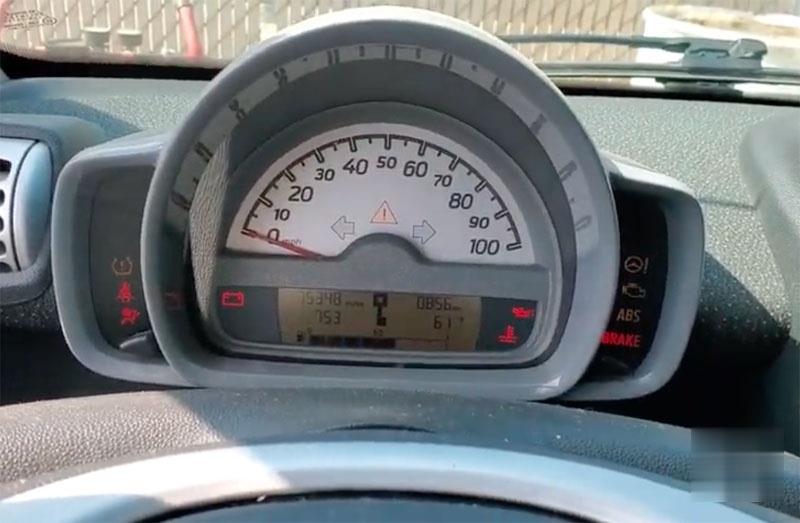
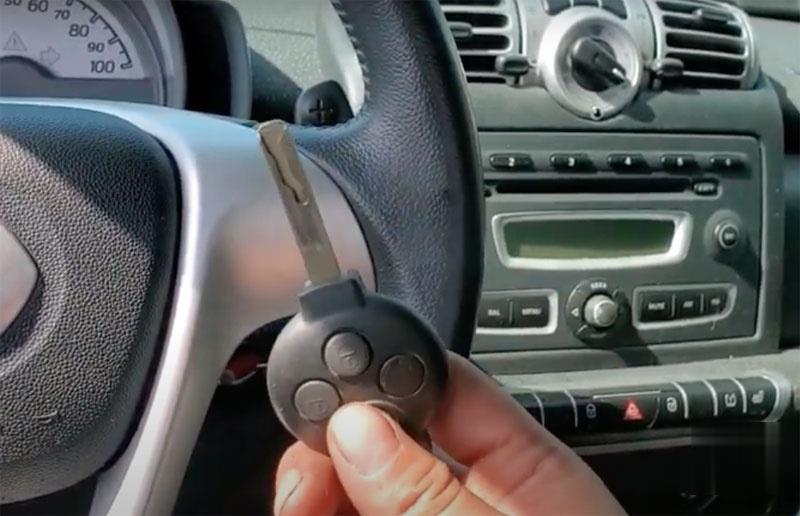
 We programmed a new remote key to a 2008 Smart Fortwo 451 with Autel MaxiIM IM608/IM508 because it lost all the keys. Car has the anti-theft indicator on.

Autel-IM608-Program-Smart-Fortwo-451-08-15-All-keys-Lost-1 (2) Autel-IM608-Program-Smart-Fortwo-451-08-15-All-keys-Lost-2 (2)   

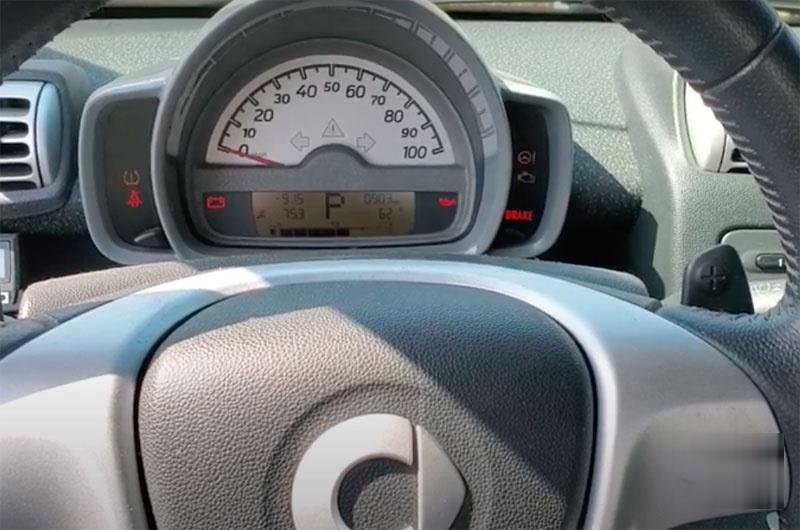
Place the ignition switch. If we try to crank it, we got the message that it not programmed. This key is virgin.

Autel-IM608-Program-Smart-Fortwo-451-08-15-All-keys-Lost-3 (2)

Procedure:

2008-2015 Smart Fortwo (all keys lost, add key, EVU replacement) with Autel IM608

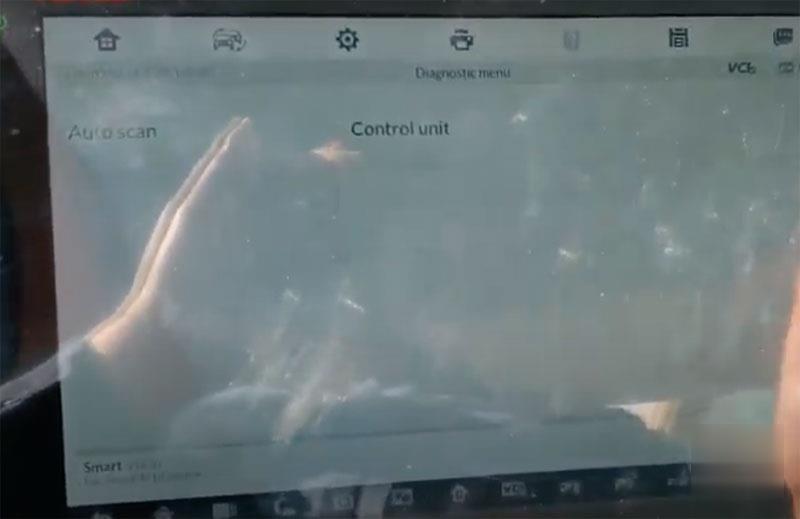
We go to Diagnostic instead of going to Immobilizer function.

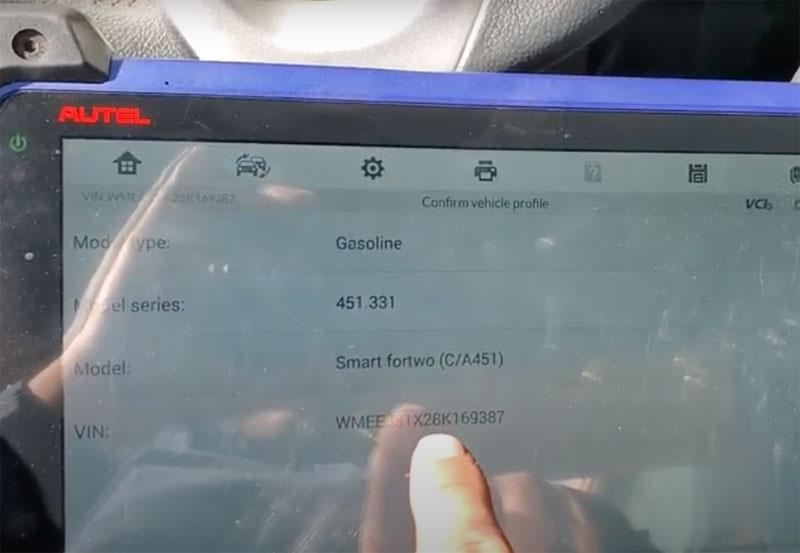
Check vehicle information, has vehicle model and vin number here

Autel-IM608-Program-Smart-Fortwo-451-08-15-All-keys-Lost-4 (2)

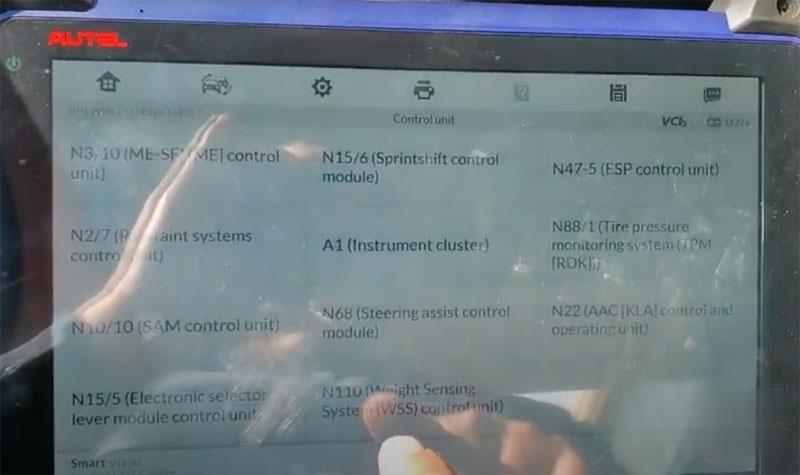
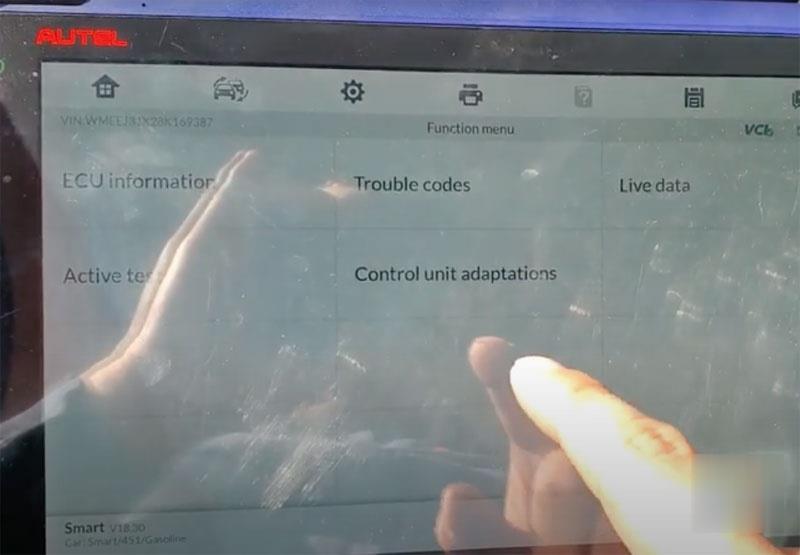
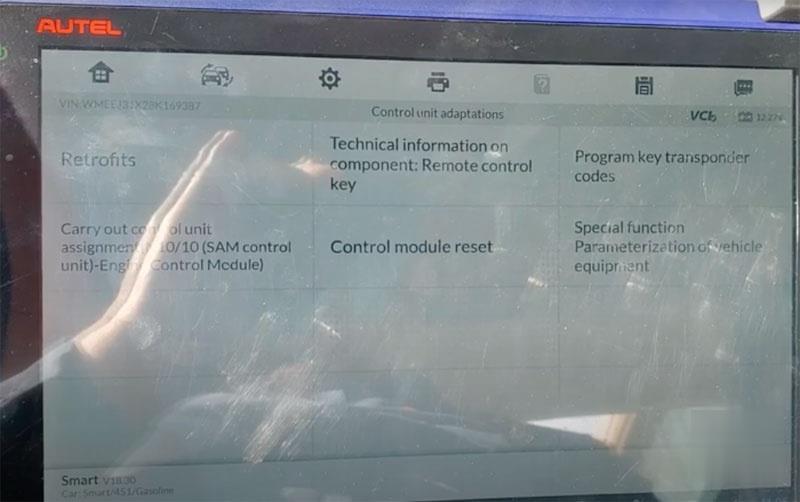
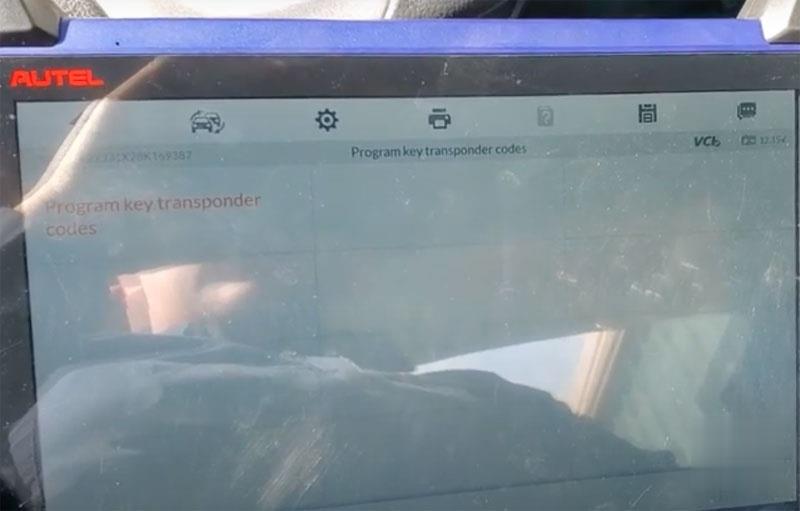
We go to Control unit ->N10/10(SAM control)-> Control unit adaptations->Program key transponder codes
Autel-IM608-Program-Smart-Fortwo-451-08-15-All-keys-Lost-5 (2)
Autel-IM608-Program-Smart-Fortwo-451-08-15-All-keys-Lost-6 (2)
Autel-IM608-Program-Smart-Fortwo-451-08-15-All-keys-Lost-7 (2)
Autel-IM608-Program-Smart-Fortwo-451-08-15-All-keys-Lost-8 (2)

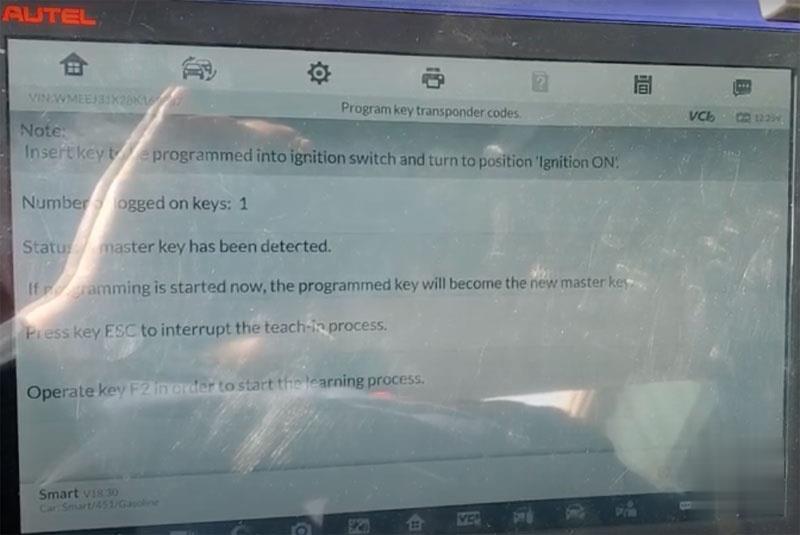
Insert key to be programmed into ignition and turn on ignition
Press F2 to start learning process

Autel-IM608-Program-Smart-Fortwo-451-08-15-All-keys-Lost-9 (2)

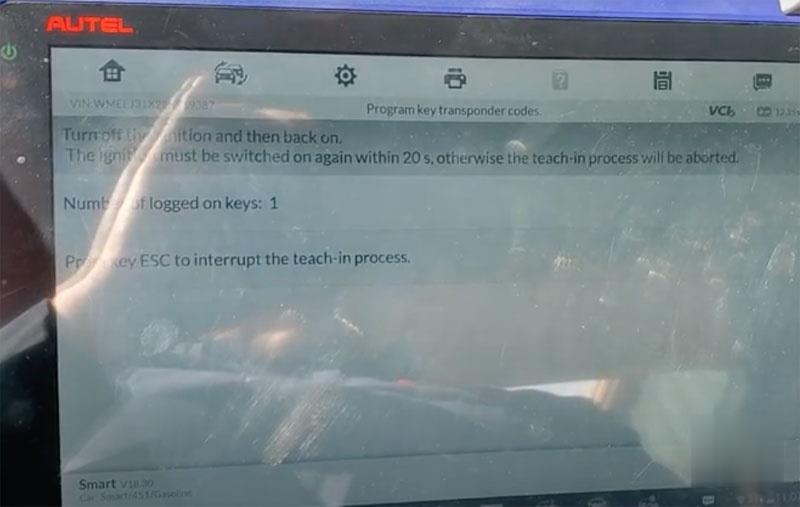
Turn off the ignition and then back on.

Autel-IM608-Program-Smart-Fortwo-451-08-15-All-keys-Lost-10 (2)

Press key ESC to interrupt rage teach-in process
Autel-IM608-Program-Smart-Fortwo-451-08-15-All-keys-Lost-11 (2)

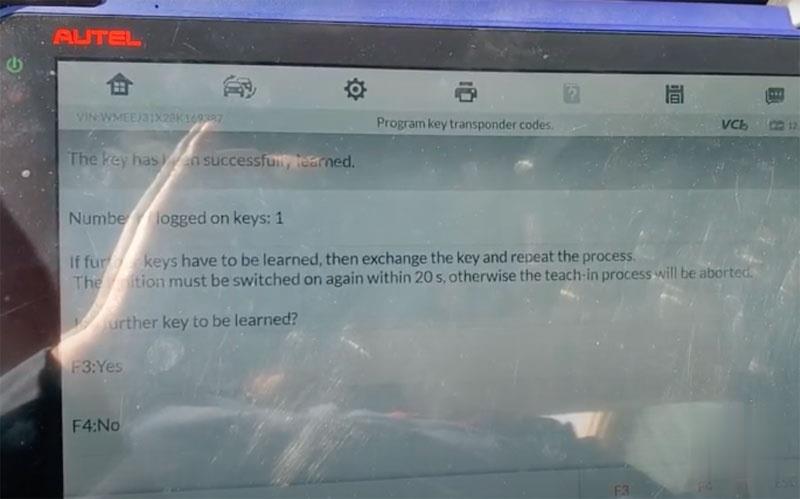
The key has been successfully learned.
Press Yes
Learning key in progress
Press F4 STOP
Remove the taught-in vehicle key

Insert vehicle keys to be taught in into ignition lock and turn to position ignition on
The ignition must be switched on again within 20s

Autel-IM608-Program-Smart-Fortwo-451-08-15-All-keys-Lost-12 (2)

Key has programmed. Now you can start the engine with the new key.

https://autelscantools.blogspot.com/2021/05/can-autel-im608-program-smart-fortwo.html

2021年5月26日星期三

How to Get SDConnect C4C5 to Work Under Part W

 MB Star diagnosis SDConnect C5 Clone (its a C4 in a C5 shell) – It works great in Xentry, connects and are fast and never fails there.
Windows 7 32 bit Ultimate Activated – Works perfectly as well and are fully updated
240gb SSD
Vediamo 4.2.2 with a good license and everything activated.
SDConnect Toolkit 2.1.13.

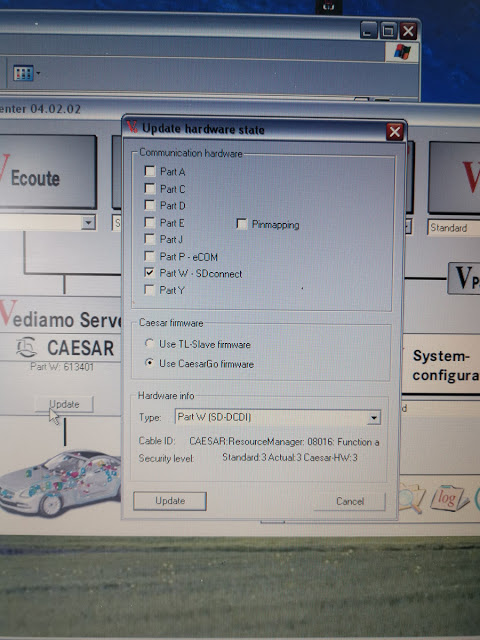
My question is: How to get Vediamo 4.2.2 to run on Part W configuration without the ToolkitApiDll.dll error and vediamo not finding your SDConnect c4/c5? Vediamo 4.2.2 has the Part W-SDconnect functionality integrated, yet when I try to use it stops detecting the SDConnect, because Vediamo doesn’t seem to want to communicate. It is not a computer to ecu error, it’s simply a computer-software error.

Simple question: how to get the SDConnect to work under Part W – SDConnect
And I mean Part W and not Part P-eCom.

Look at this image:

mb-sd-c4-c5-under-part-w

2.1.30 SDConnect Toolkit and Dietrih’s Vediamo 4.02.02 works with part W. Just gotta try with Me21.cbf now and see if we cannot simply get vediamo to work with this “Too old” ECU.

Update:

Success to connecting to the ECU now! It can read fault codes, see sensor data and some more stuff. Not really been giving me in to change anything yet because I am not sure what to do yet. But this is a great step forward!

Enjoy!

For any question on SDConnect C5, contact at www.obd2tool.com for assistance.
loading..

How to change GEM settings in Fiesta 2003


How to change GEM settings in Fiesta 2003 ?
I need to check or change the settings of the GEM in an Fiesta MK6 (build 2003).
Anyone knows a software tool to do this?
I have an ELM327 (clone) adapter at hand. Also an UCDS interface.

There are two software tools to do this:

IDS/VCM
Forscan

In details:
Ideally you want IDS/VCM for this.
At this age you can do anything to this car using a VCM with Ford IDS v86 and C81 calibrations.
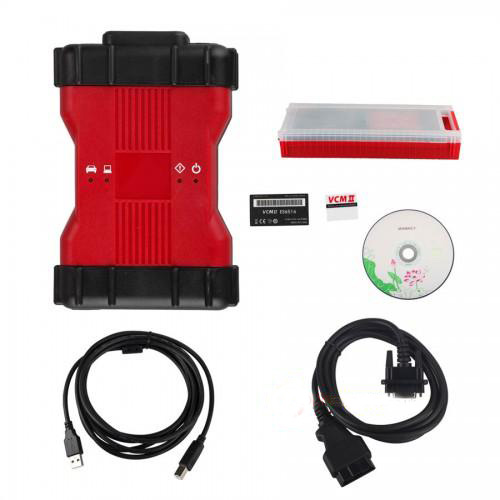
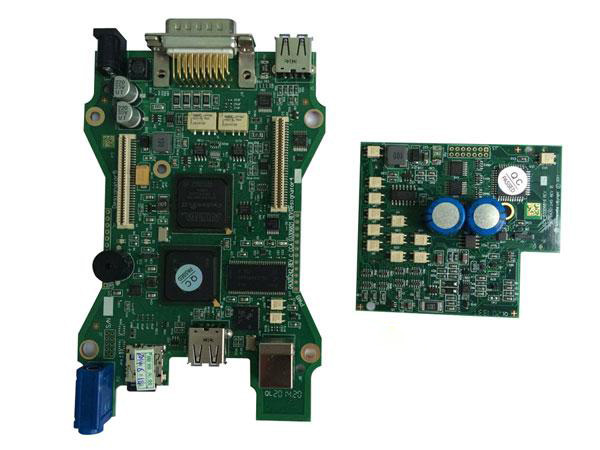
Advise the best VCM2 Ford IDS V101 (with double pcb, no wifi):

Vcm2-Change-Gem-Settings-In-Fiesta-2003-1
Vcm2-Change-Gem-Settings-In-Fiesta-2003-2

Capable alternative: Forscan
ForScan is working fine. I had this, but an old version without capability to program. Downloaded the recent version from forscan.org and all worked like charm! This is a really great tool and all for FREE!

Another working alternative: FORScan Scanner clone
Test reports: China clone bought two days ago, but DTC, direct coding and other functions work.
Vcm2-Change-Gem-Settings-In-Fiesta-2003-3
Vcm2-Change-Gem-Settings-In-Fiesta-2003-4
Vcm2-Change-Gem-Settings-In-Fiesta-2003-5